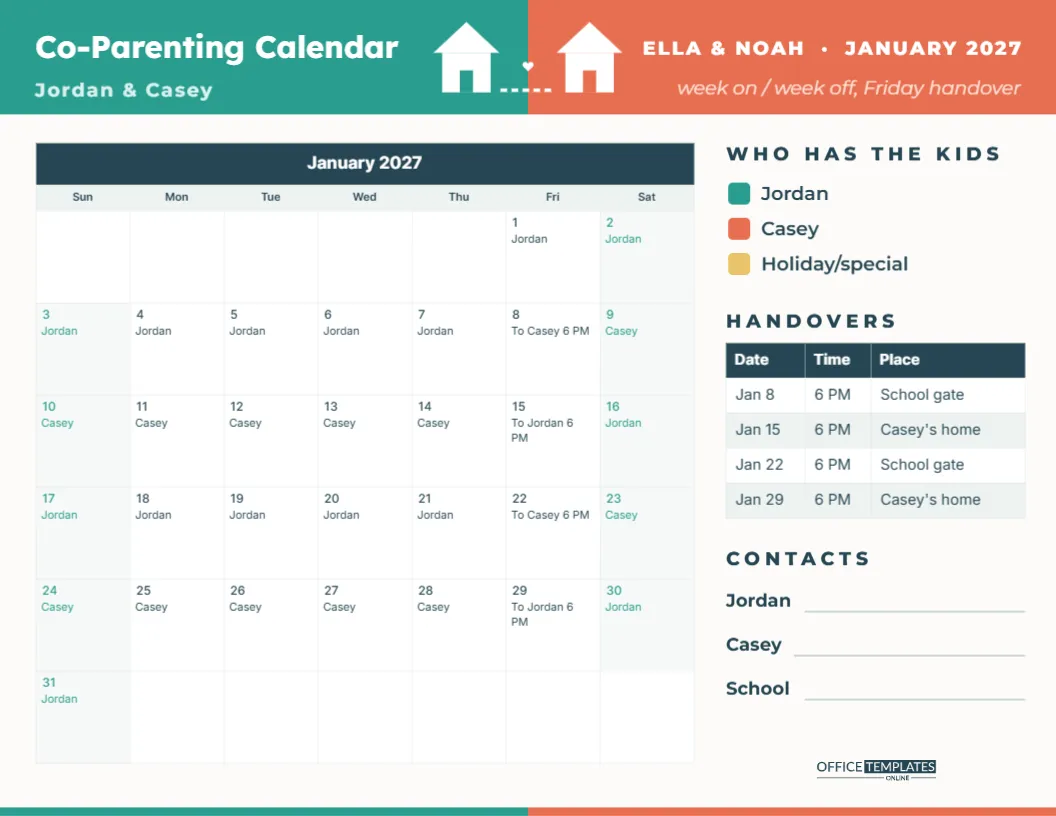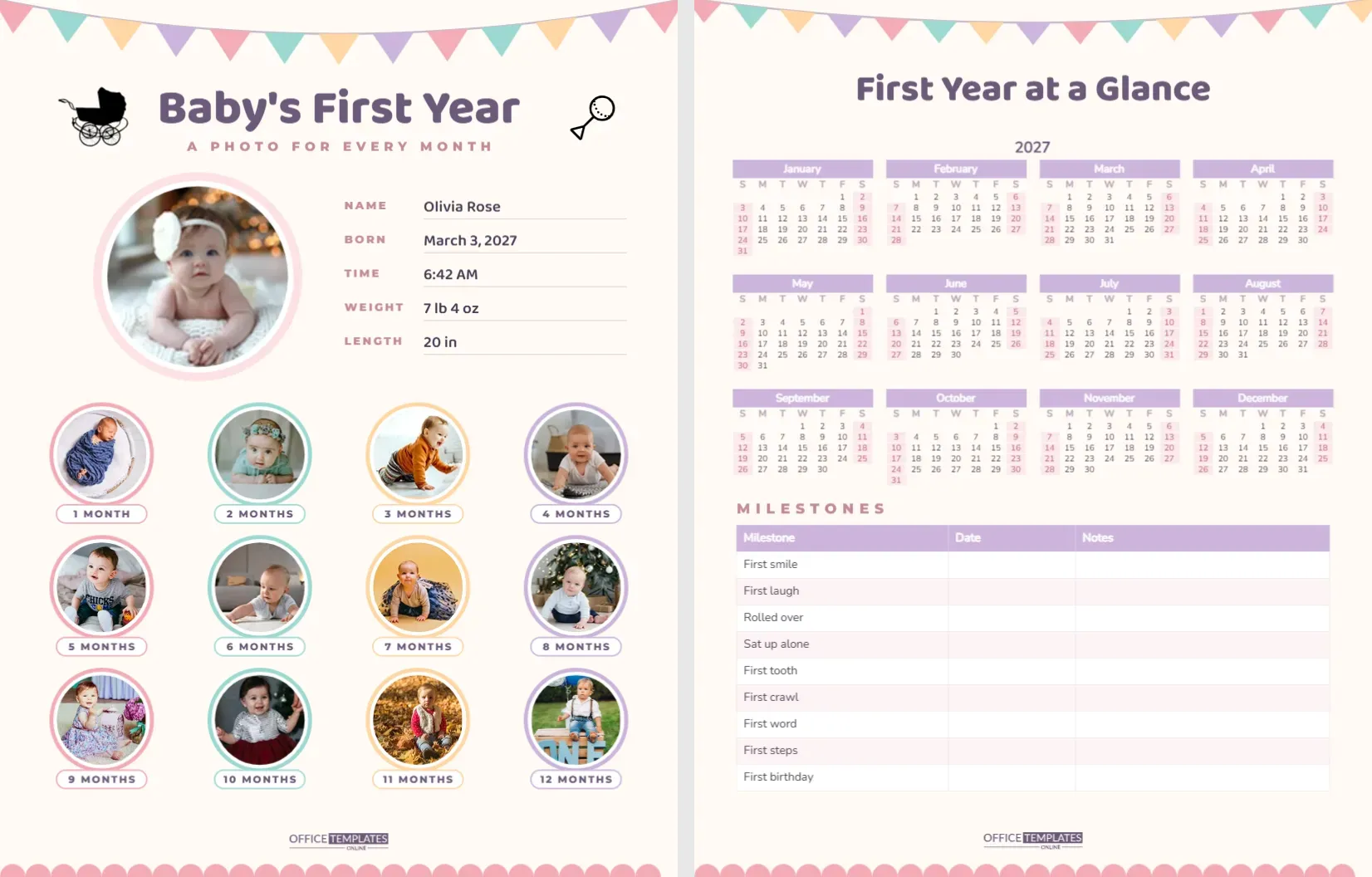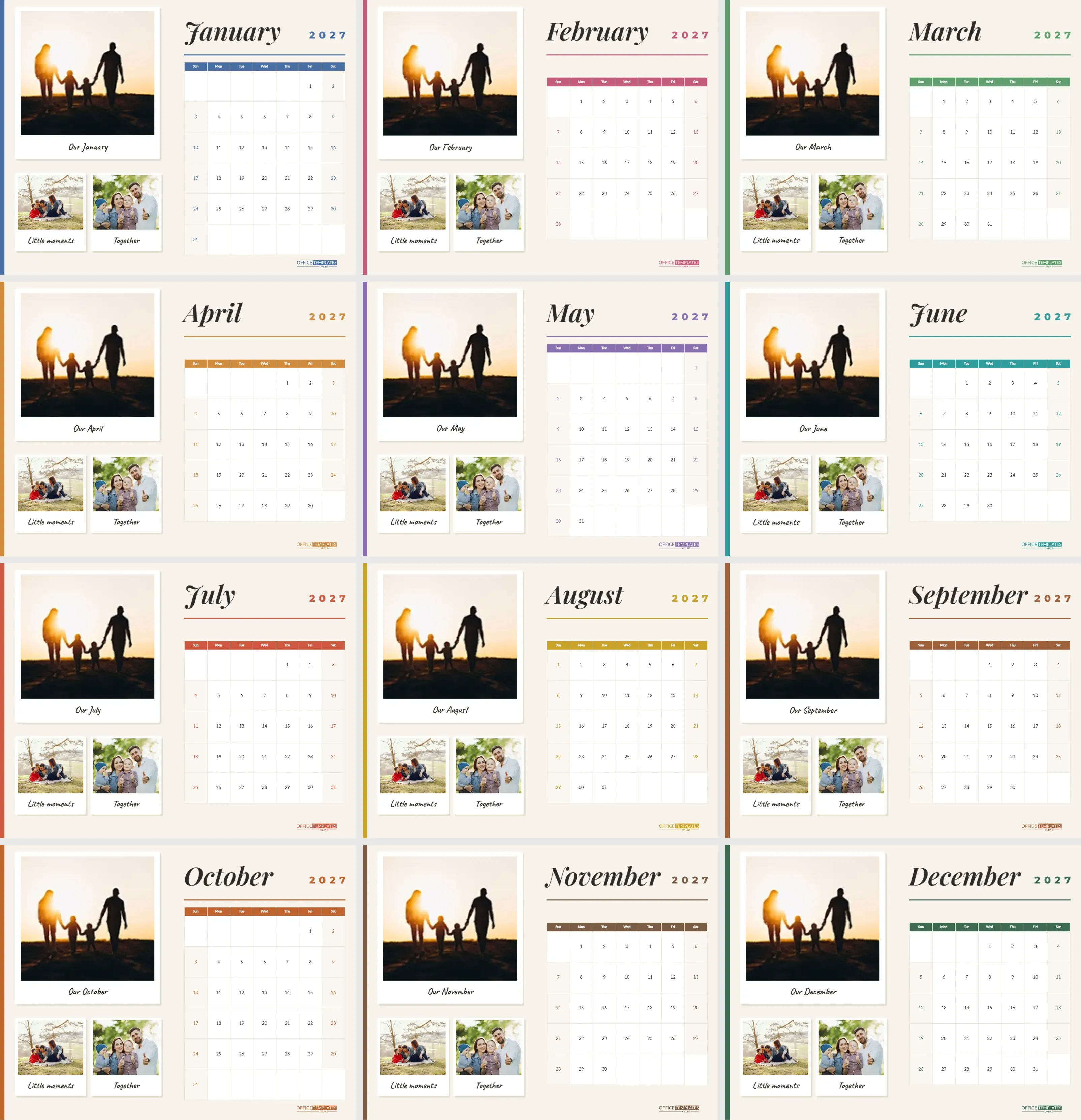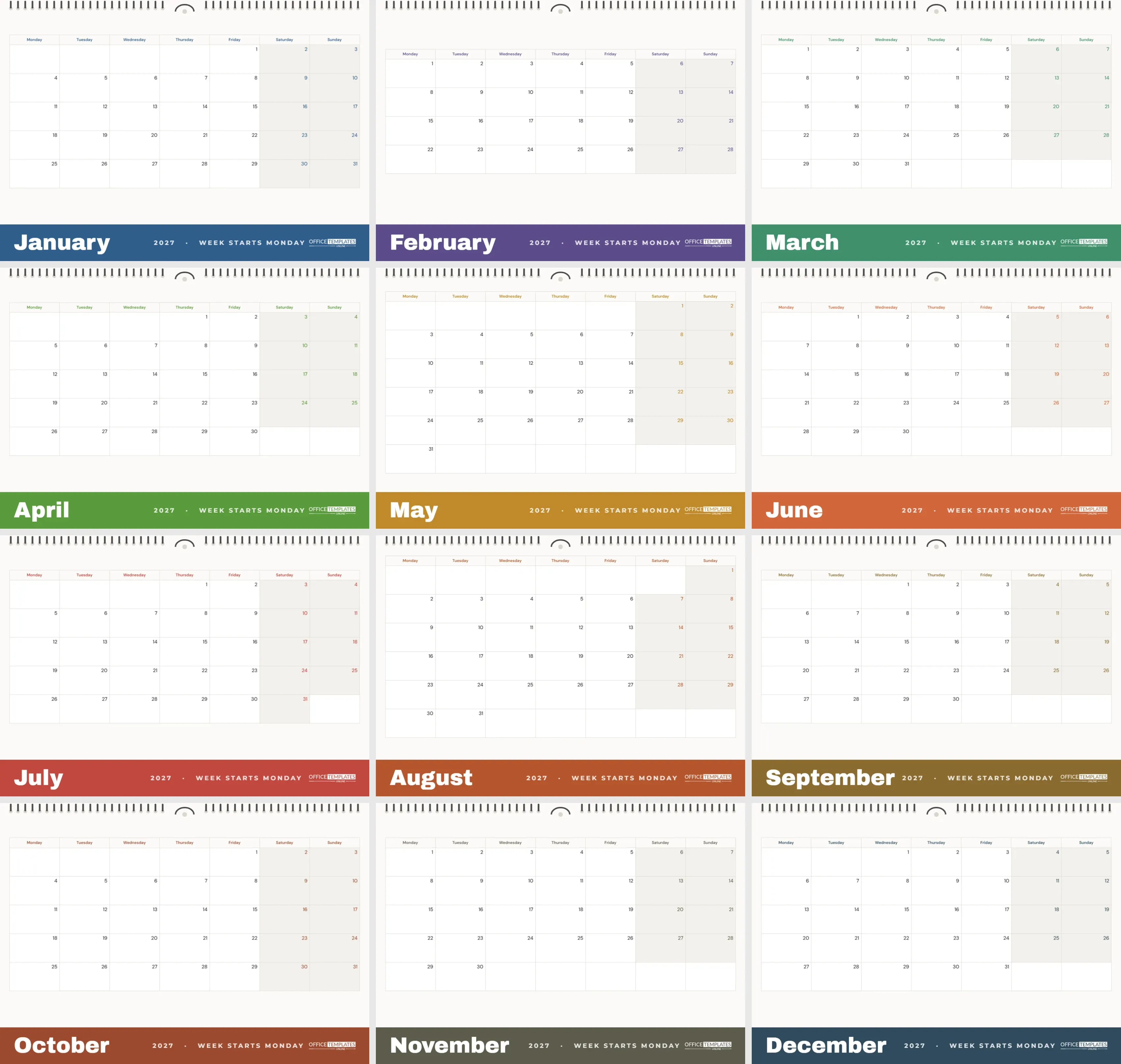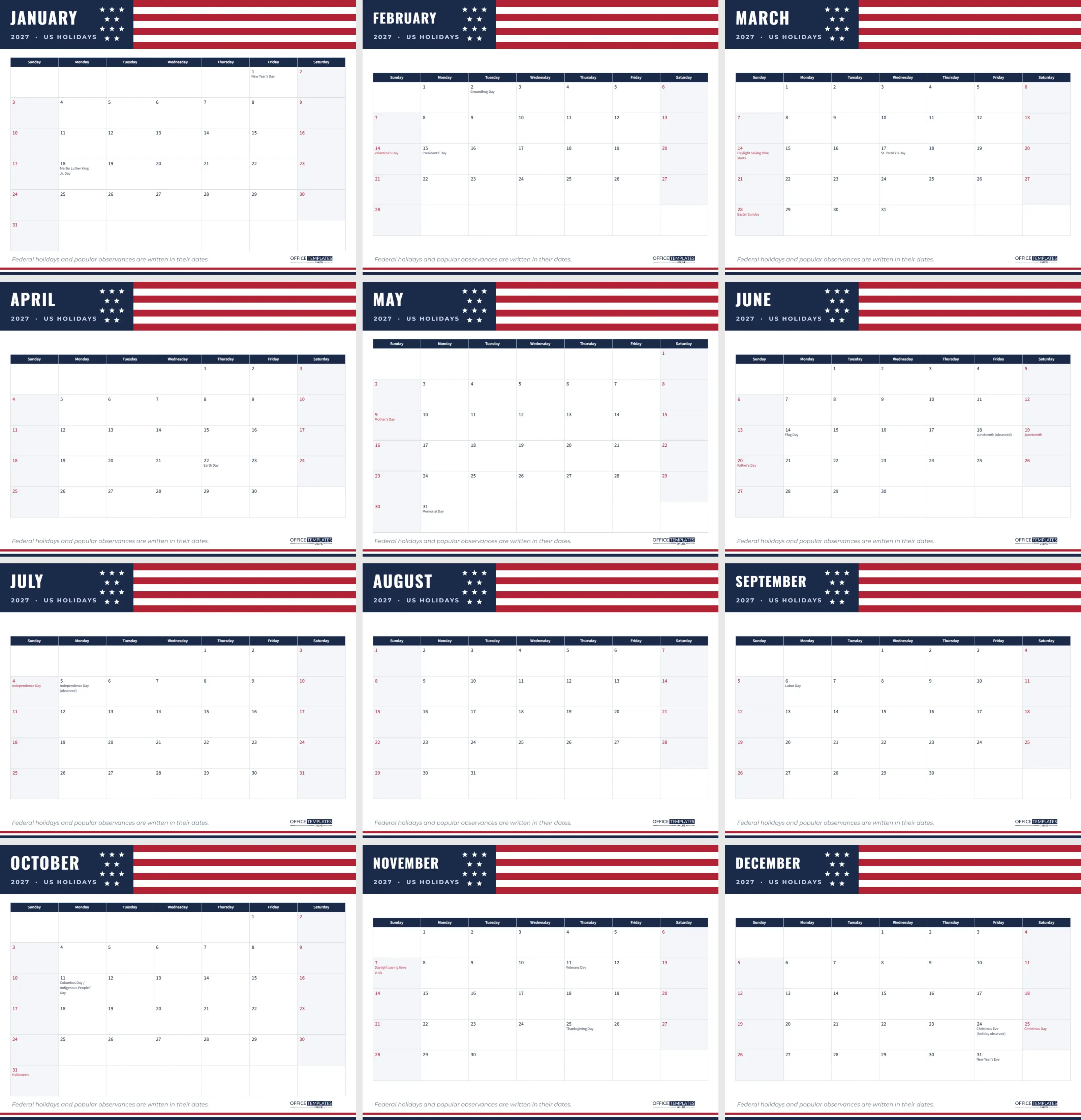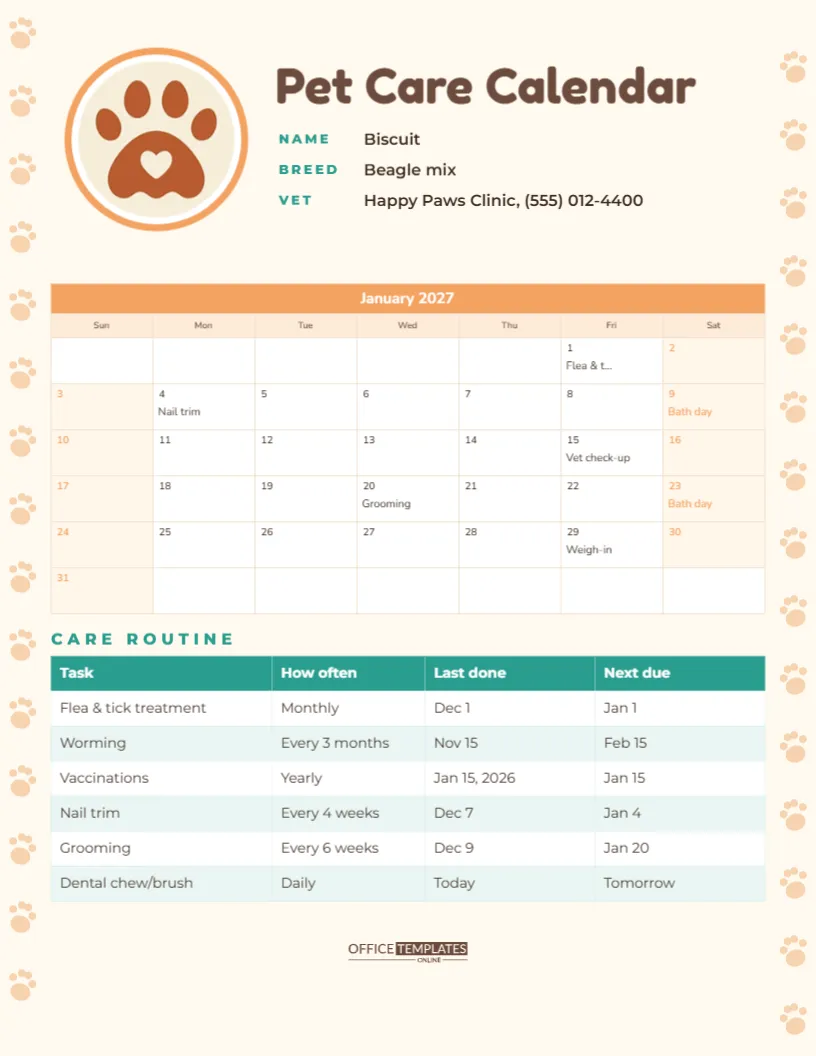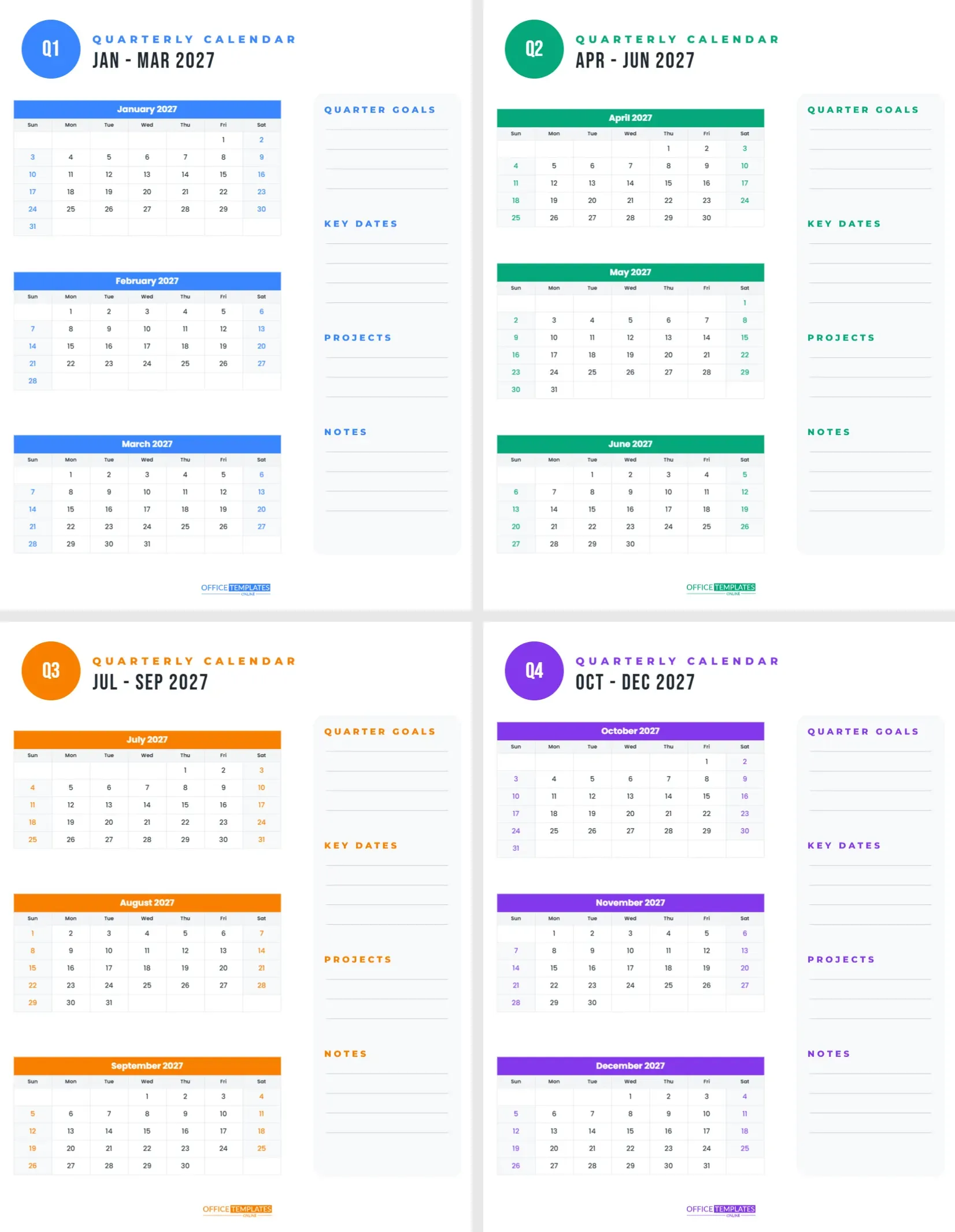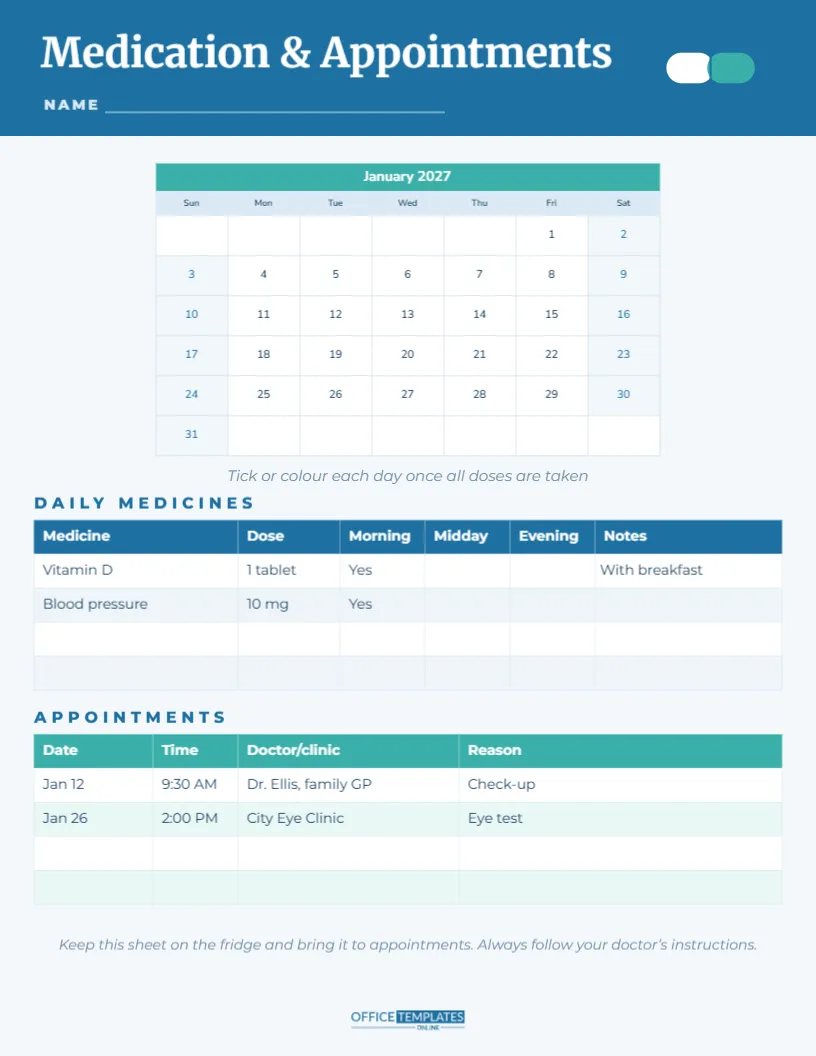
Sometimes you just need a clean monthly calendar: big squares, clear dates, and room to write. No themes, no fuss. This template gives you exactly that, and it works for any month of any year. Open it, choose the month you need, and print. It is the calendar you reach for when planning a project, a holiday, a school term, or a busy month at home.
Can One Calendar Really Cover Every Month?
Most printable calendars are fixed to one month. This one is built on the editor’s own Calendar object, so the month and year are settings, not printed text. Select the calendar, open Calendar Options, and choose any month and year. The title row changes to the new month name, and every date moves to the correct weekday. Print it, then switch to the next month and print again. One template covers your whole year, and the next one too.
What Does the Page Look Like?
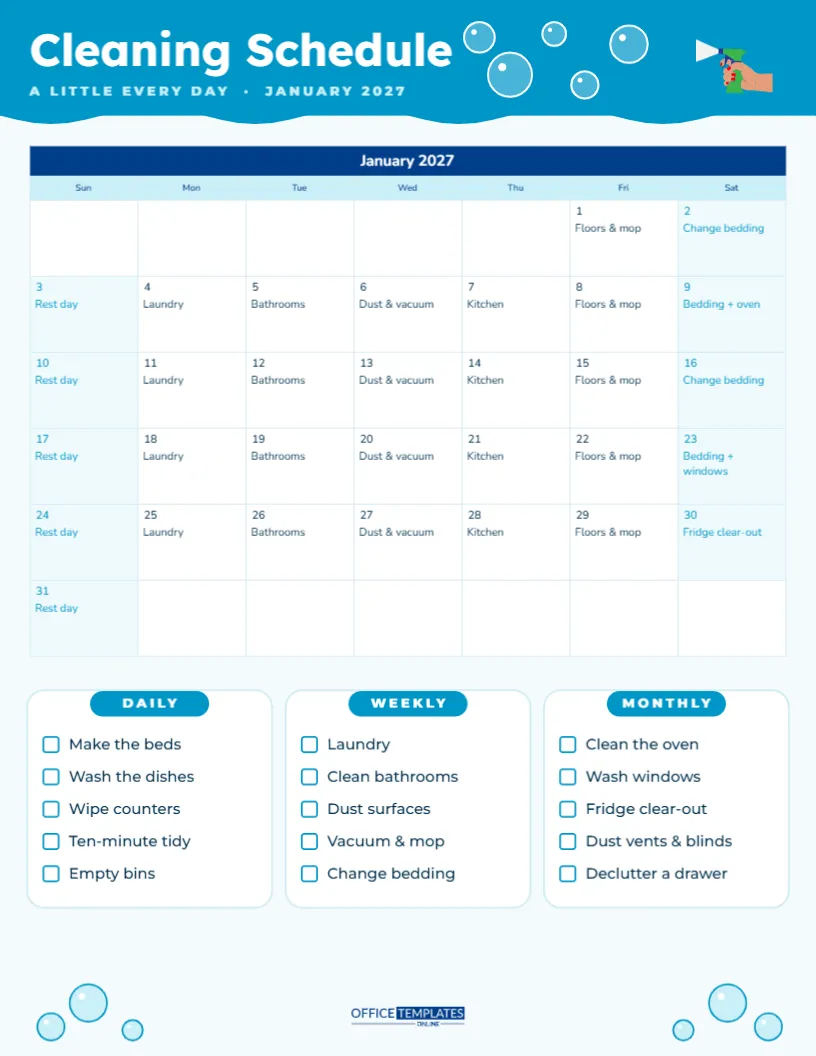
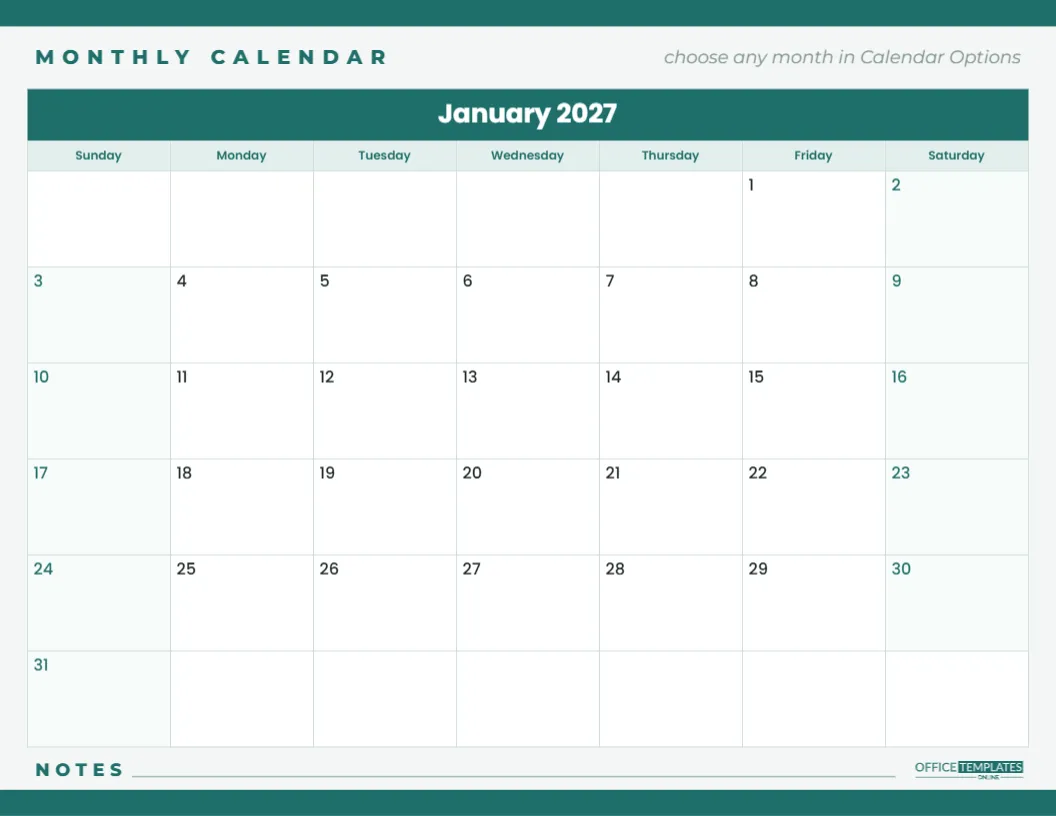
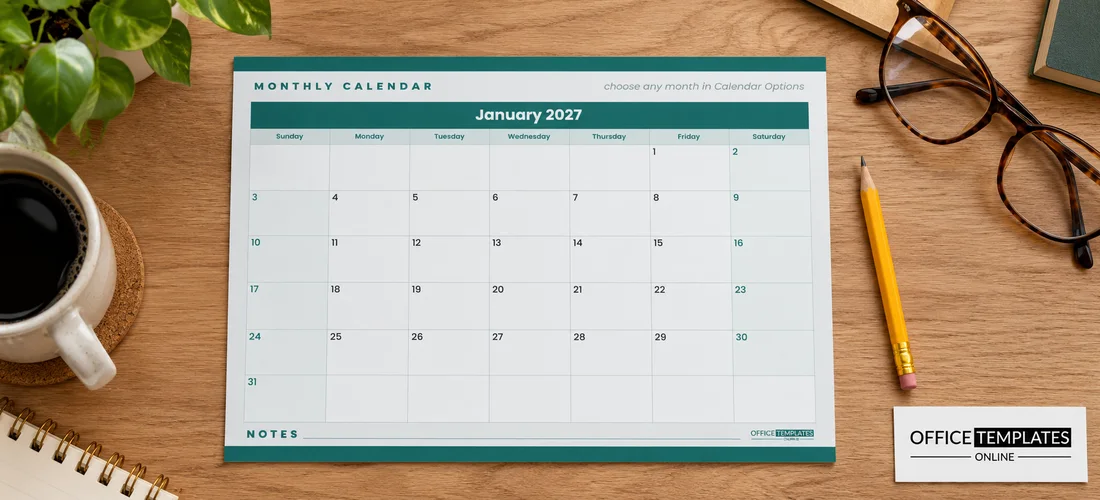
The calendar is US Letter landscape, 11 x 8.5 inches. A teal strip runs along the top and bottom edges of the page. Above the grid, MONTHLY CALENDAR is set in small-spaced teal capitals, with a small italic reminder that you can choose any month in Calendar Options. The calendar itself has a solid teal title row showing the month and year, such as January 2027, in white Poppins. Below it, a pale teal row spells out the weekday names in full, from Sunday to Saturday.
The date squares are generously sized, about 1.4 x 1 inch on paper, with the date in the top-left corner. Weekends are lightly tinted with teal numbers. At the bottom of the page, a NOTES line gives space for anything that does not belong to a single day, and the OTO logo sits in the bottom-right corner.
Where Do I Change the Month, Week Start or Colours?
| What you want | Where to change it |
|---|---|
| A different month or year | Calendar Options: month and year |
| Weeks starting on Monday | Calendar Options: week start |
| Short weekday names (Mon, Tue) | Calendar Options: day name format |
| Your own colours | Calendar Options: colours, plus the teal page strips |
| Notes typed into the dates | Calendar Options: switch to Task Calendar style |
| A different font | Calendar Options: font (any Google font) |
Can I Type Events Instead of Writing Them?
If you prefer typing to handwriting, switch the calendar style to Task Calendar in Calendar Options. Each date then gets its own note field, where you can type appointments, deadlines, or reminders. The notes appear inside the squares when you print. This is handy for shared calendars, such as a team rota, a club schedule, or a family plan, where you want neat, readable entries that everyone can understand.
What Do People Use It For?
- Monthly family planner on the fridge.
- Work project timeline with milestones written in.
- Club or team schedule with practice and match days.
- Holiday planner showing travel and booking dates.
- School homework and test calendar for students.
- Content calendar for a blog or social media account.
- Exercise or habit tracker, with a tick for every completed day.
How Do I Keep a Busy Month Readable?
Large squares invite clutter, so a few habits keep the calendar readable. Write times first (9:30 Dentist) so the day reads in order. Use one colour per person or category. Draw a line through completed items rather than scribbling them out. Use the NOTES line for the month’s top priorities. If a single day is very busy, write see notes and list details at the bottom.
How Do I Make a Whole Year from It?
Because the calendar can be set to any month, it is easy to build a full-year binder. Duplicate the page eleven times in the editor, set each copy to the next month in Calendar Options, and download all twelve pages as one PDF. Print them, punch three holes, and file them in a binder with tabs for each month. Add a few blank lined pages after each month for meeting notes or lists, and you have a simple, inexpensive planner that you designed yourself.
How Should I Print It?
- Choose your month and year in Calendar Options.
- Download the page as a PDF.
- Print in landscape on plain or card paper.
- For a whole year, change the month and download again for each month, or duplicate the page twelve times and set each one to a different month before downloading a single PDF.
The design uses only a small amount of colour, so it is economical to print at home.
Will It Work for School Terms?
Yes. Set the month to the start of term, print a page for each month of the term, and write in exam dates, trips and holidays. Teachers often keep a copy in the front of their planner and another on the classroom wall, where pupils can see what is coming up.
Can It Match My Brand or Room?
The teal palette is calm and neutral, but every colour can change. In Calendar Options, set the title row, weekday row, cells, borders, and weekend colours. Then recolour the top and bottom strips and the small labels to match. Navy and grey suit an office, pastel pink suits a nursery, and forest green suits a garden club. The calendar font can be any Google font; Poppins is used by default for its clear, round numbers.
How Do I Share It with a Group?
A plain calendar is ideal for sharing, because everyone can read it. Club secretaries send the month’s schedule as a PDF to members, teachers attach it to newsletters, and families keep a copy on a shared drive. Use the Task Calendar style to type entries neatly, then download a PNG to share in a group chat. Everyone sees the same dates, and nobody needs special software to open it.
Can I Show Days from the Previous Month?
Yes. Turn on the outside days option in Calendar Options to fill the empty squares.
Does It Work for 2028 and Beyond?
Yes. Any year works, past or future.
Pick your month, print, and start planning. One clean calendar, every month you will ever need.