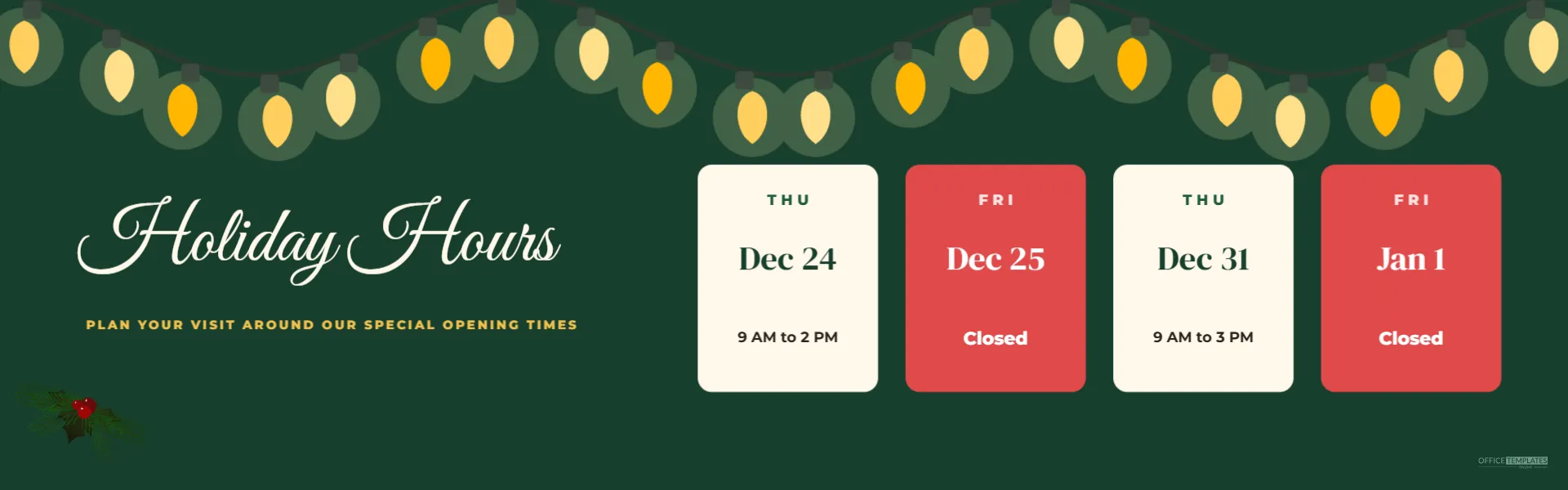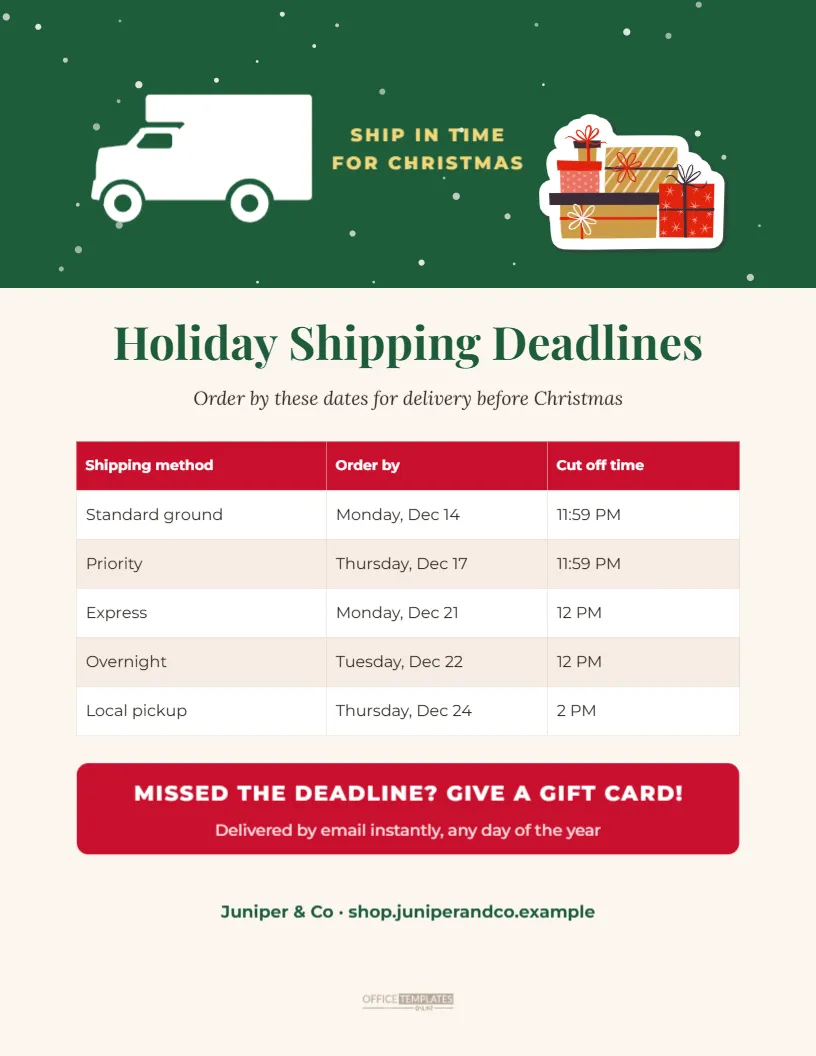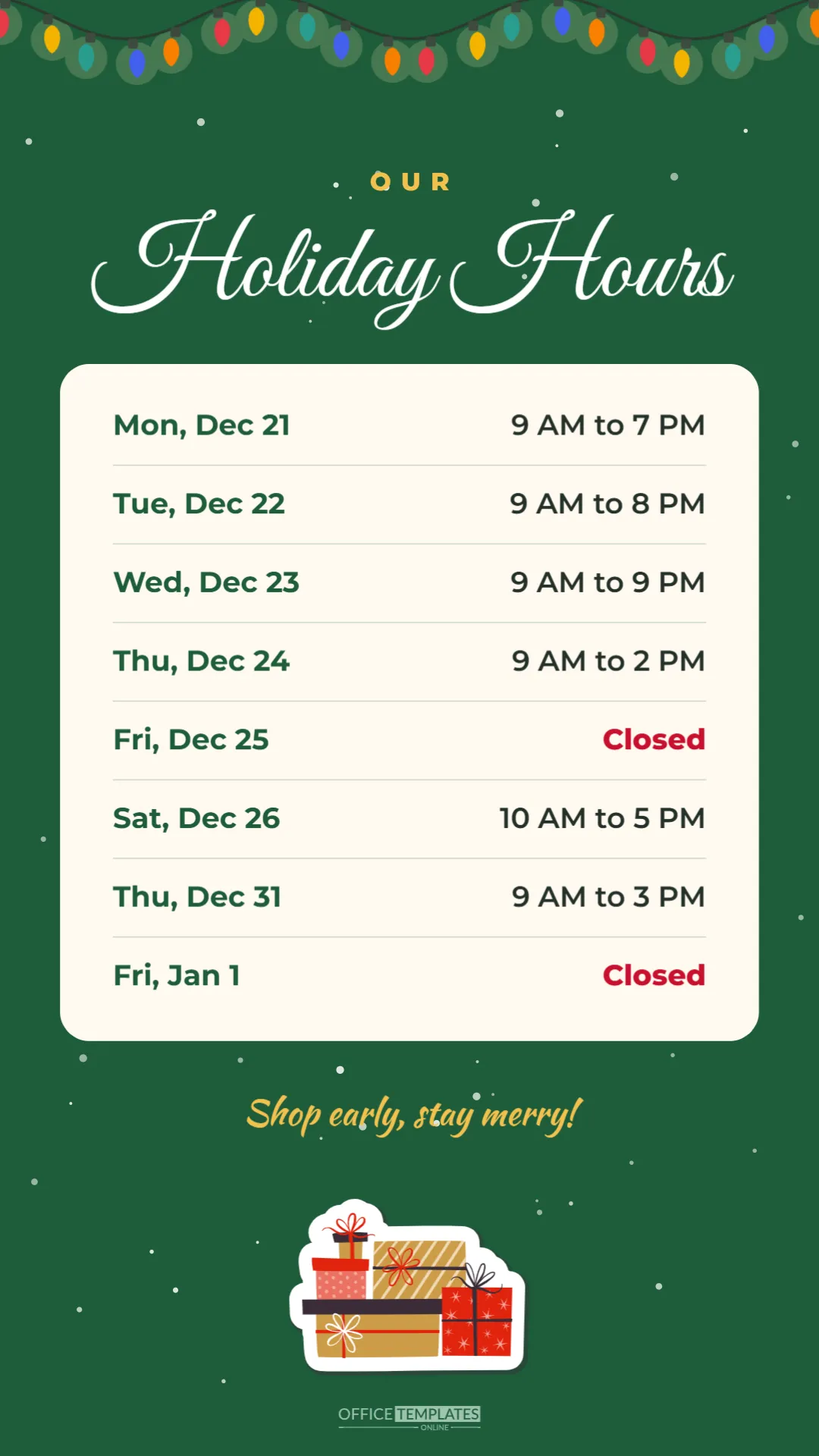
Stories sit at the very top of Instagram and Facebook, and they are where many followers check in with the businesses they love. A full-screen holiday hours story reminds customers of your schedule right when they are planning their shopping. This 1080 x 1920 pixel template is designed for exactly that. It has a deep evergreen background with gentle snow, a string of multicolour Christmas lights across the top, OUR in spaced gold capitals, and Holiday Hours in large white script. A tall cream panel lists eight days, from Monday, December 21 to Friday, January 1, with closed days in red. Below the panel, Shop early, stay merry! appears in gold brush script above a cheerful stack of wrapped gifts.
Why Stories Work for Holiday Hours
Stories feel immediate and personal, and followers watch them more often than they browse a business profile. Because a story disappears after a day, you can post your hours several times in December without cluttering your grid: once when you announce them, again a few days before Christmas, and a final time on Christmas Eve morning. You can also save the story to a Highlight called Holiday Hours so it stays available on your profile.
The Evergreen Story Design
The design uses a classic green, red, and gold palette that looks festive without being busy. The string of lights at the top frames the screen like a shop window. The title is large enough to read without zooming, and the cream panel has generous spacing between rows so each day is clear on a phone screen. The gift stack at the bottom adds a playful finishing touch.
Safe Zones for Story Text
On Instagram and Facebook, the top and bottom of a story are partly covered by the profile name, progress bar, and reply box. This template keeps all of the important text in the middle of the screen, inside the cream panel, so nothing is hidden. The lights and gifts sit in the outer areas, where it does not matter if they are partly covered.
Editing the Eight Days of Hours
The sample lists a typical retail Christmas week: longer hours from December 21 to 23, a short Christmas Eve, closed on Christmas Day, a short Saturday on December 26, an early close on New Year’s Eve, and closed on New Year’s Day. Click each day or time to change it. To remove a day, delete its two text boxes and the divider below, then move the remaining rows up to keep the spacing even.
Adding Interactive Story Stickers
After uploading the image to Instagram, you can add interactive stickers such as a link to your online shop, a countdown to Christmas, or a poll asking followers which day they plan to visit. Place stickers in the space below the panel, beside the gifts, so they do not cover the hours.
Changing the Colours and Lights
Click the background to change the green to your brand colour. The lights are vector artwork, so you can resize them, recolour the bulbs, or replace them with a garland from the Elements panel. The gold title text and the script line can be recoloured to suit a new palette.
Downloading the Holiday Hours Story
Download a PNG or JPG at full size, transfer it to your phone, and upload it as a story. Because the canvas is exactly 1080 x 1920 pixels, it fills the screen without cropping. The same image works as a WhatsApp status, a Facebook story, and a vertical post on TikTok.
Saving Holiday Hours as a Highlight
Create a Highlight called Holiday Hours or Christmas and add this story to it. Highlights appear under your bio, and followers can tap them at any time. When the season is over, remove the story from the Highlight or replace it with your regular hours.
Story Captions and Accessibility
Stories do not have captions in the same way as posts, but you can add a small text sticker summarising the closed days or include the hours in a matching feed post. This helps followers who use screen readers or who watch stories quickly and miss the details.
Using the Story in Email and Messaging
Vertical images also suit text messages and messaging apps. Send the story image to your customer group on WhatsApp or to regular clients by text message, with a short note thanking them for their support during the year.
A Matching Square Post
For a consistent look across your feed and stories, pair this design with the square Christmas holiday hours post in this category. Using the same hours and colours in both helps customers recognise your updates instantly.
Holiday Story Ideas Beyond Hours
Once your hours are posted, you can use the same background to create other festive stories, such as a gift guide, a last day for orders announcement, or a thank you message to customers. Duplicate the page, replace the panel contents, and keep the lights and gifts for a cohesive series.
Posting Schedule for the Holiday Season
A good rhythm is to post the hours story in early December, again on the weekend before Christmas, on December 23, and on the morning of December 24. Then post an updated New Year version on December 30. Regular reminders catch followers who missed earlier stories.
Small Business Story Tips
Keep your face or your team in some stories alongside the hours graphic. Followers respond warmly to a quick video of the shop decorated for Christmas, followed by the hours story. Personal touches make the practical information feel friendly rather than formal.
Holiday Hours Story Questions
Will the story fit TikTok and Facebook?
Yes. All three platforms use the 1080 x 1920 vertical format.
Can I add more than eight days?
You can, but nine or ten rows is the limit for comfortable reading on a phone.
Can I remove the gift stack?
Yes. Select and delete it, or replace it with your logo.
Light Up Your Stories This Season
Update the days, download the image, and share your holiday hours story. A bright, readable story keeps followers informed and brings a little festive sparkle to their screens.