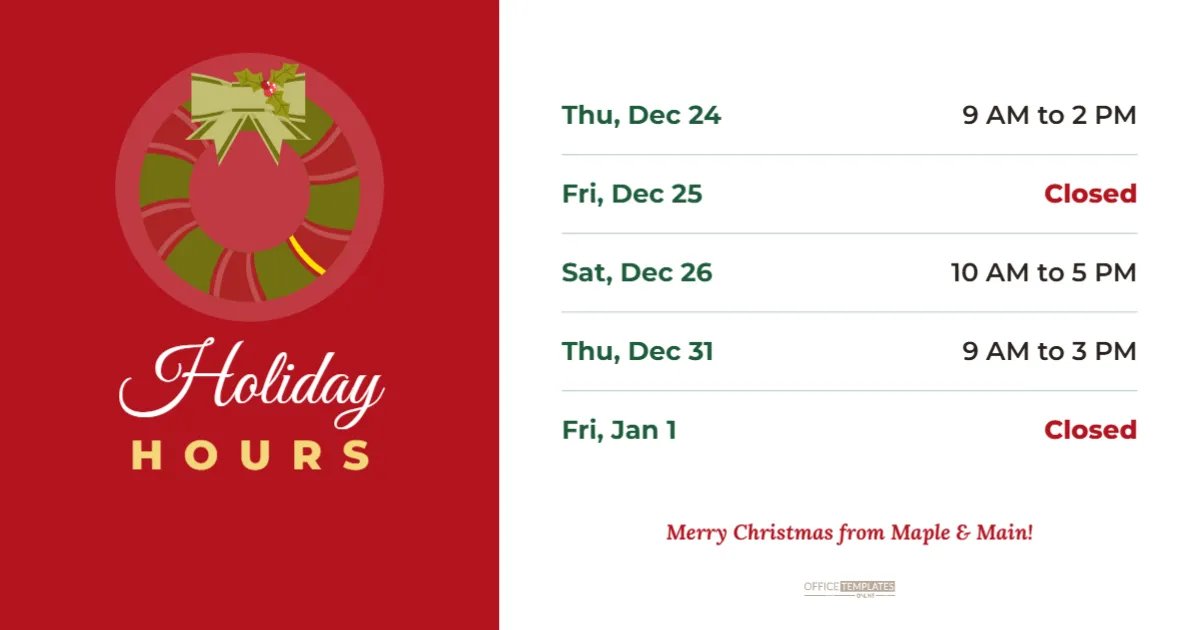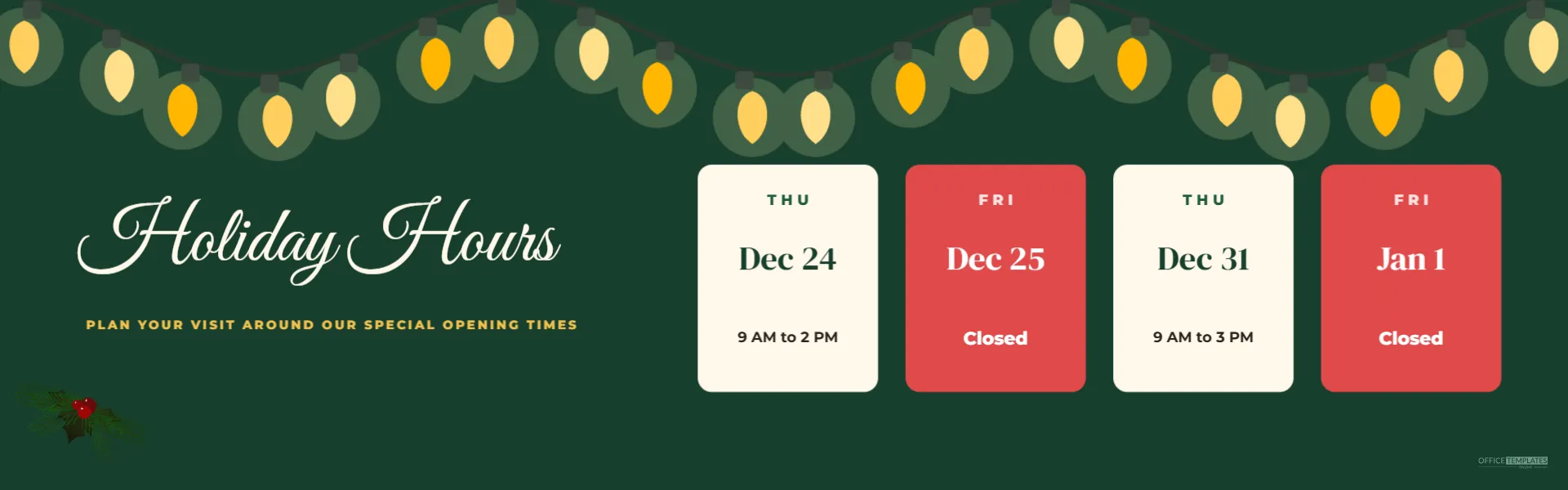
Your website is often the first place customers check for holiday hours, and a banner at the top of the homepage answers the question instantly. This 1920 x 600 pixel template is designed for exactly that. A deep evergreen background is lit by a string of warm golden lights across the top. On the left, Holiday Hours appears in large cream script with a gold line beneath, PLAN YOUR VISIT AROUND OUR SPECIAL OPENING TIMES, and a pine sprig in the corner. On the right, four rounded day cards show the key dates: Thursday, December 24, 9 AM to 2 PM; Friday, December 25, closed; Thursday, December 31, 9 AM to 3 PM; and Friday, January 1, closed. Closed days appear on red cards, open days on cream cards.
Why Use a Holiday Hours Website Banner
Visitors decide within seconds whether a website has what they need. A banner at the top of the homepage shows holiday hours before visitors scroll or search. It reduces phone calls and emails, and it signals that your business is well organised.
The 1920 x 600 Banner Size
A 1920 x 600 pixel image is a common size for full-width website hero banners. It scales down neatly on smaller screens. Check your website theme’s recommended banner size; many themes accept this ratio, or you can resize the canvas in the editor.
The Day Card Layout
Four cards show the weekday, date, and hours. Red cards highlight closed days, and cream cards show special hours. The cards are large and simple, so they remain readable even when the banner is scaled down on a tablet.
Editing the Banner Dates
Click each weekday, date, and hours line to change it. To change a card’s colour, select the card shape and choose red or cream, then update the text colour to match. You can delete a card and space the others evenly if you need only three dates.
Mobile Friendly Banners
On phones, wide banners shrink, and text can become small. Many website builders let you upload a separate mobile banner. Our category includes a square Instagram post and a vertical story that work well as mobile banners with the same hours.
Uploading the Banner to Your Website
Download a PNG or JPG and upload it to your website’s homepage banner or slider. Add alternative text listing the holiday hours, which improves accessibility and helps search engines understand the image.
Alt Text for Holiday Hours Banners
Write alt text such as Holiday hours: December 24, 9 AM to 2 PM; December 25, closed; December 31, 9 AM to 3 PM; January 1, closed. Screen reader users then receive the same information as everyone else.
String Lights and Pine Artwork
The warm lights and pine sprig are editable vector art. Move, resize, or recolour them, or delete the pine for a cleaner look. The lights frame the top edge and give the banner a cosy glow.
Evergreen Banner Colour Choices
The evergreen background can be changed to navy, burgundy, or your brand colour. Keep the title light and the closed cards in a strong colour for contrast.
Holiday Hours Banners as Email Headers
Wide banners also work as email headers. Resize the canvas to 600 pixels wide if your email template requires it, or upload the full image and let your email platform scale it.
Banners for Online Shops
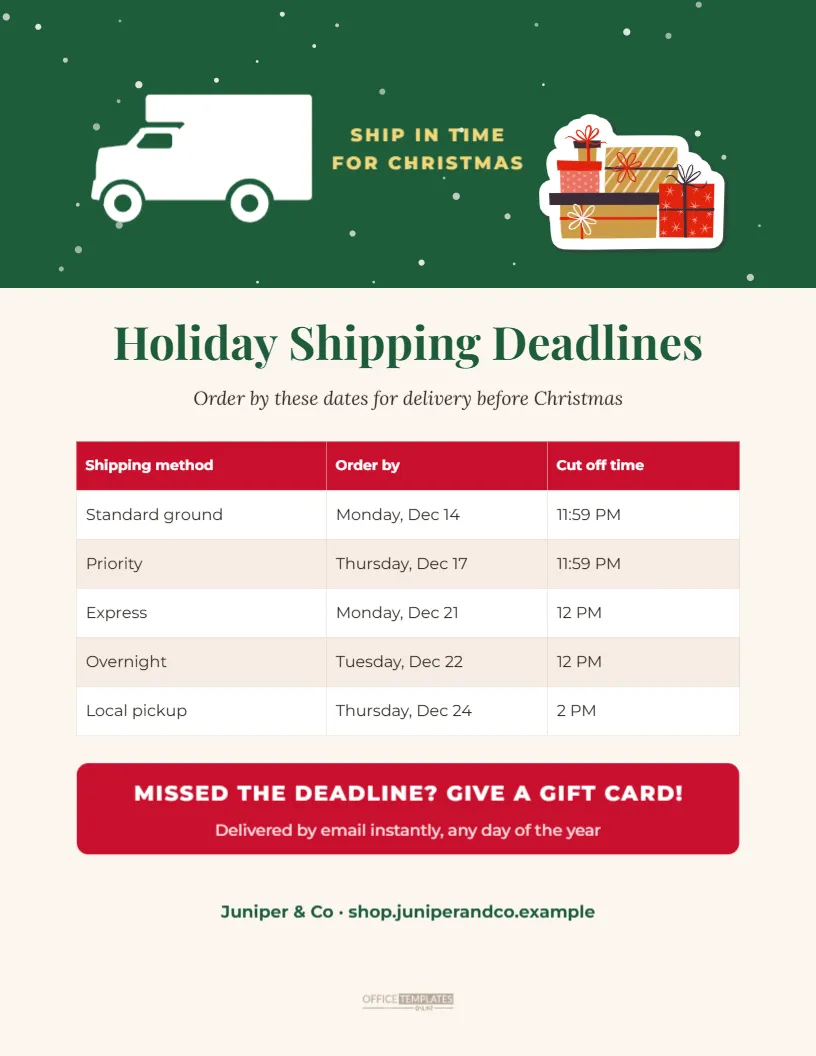
Online shops can adapt the cards to show shipping deadlines or customer service hours. Change the card content to Order by Dec 14 for standard shipping, for example, and keep the festive style.
Updating Banners After the Holidays
Remove the banner after January 1, or replace it with a New Year message or sale banner. Outdated holiday banners make a website look neglected.
Banners for Other Holidays
The layout works for any holiday. Change the title, colours and dates for Thanksgiving, Easter, summer hours or national holidays.
Website Pop-Ups and Announcement Bars
Some website builders offer slim announcement bars or pop-ups in addition to banners. Use the same wording in a short bar at the top of every page, such as Holiday hours: closed Dec 25 and Jan 1, so visitors on product pages see the message too.
Holiday Banners for Restaurants and Booking Sites
Restaurants and booking-based businesses can turn the cards into links by placing the banner above an online booking button. Visitors who see that you are open on December 31 can reserve a table straight away, turning information into bookings.
Holiday Hours Banner Questions
Can I change the banner size?
Yes. Resize the canvas in the editor to match your theme.
Can I add a fifth card?
Yes. Duplicate a card with its text and adjust the spacing.
Can I use it as a Facebook cover?
Yes. Resize the canvas to the Facebook cover dimensions and adjust the layout.
Holiday Banners for Multi-Location Businesses
Businesses with several branches may have different holiday hours at each location. Create one banner per branch and show the right one on each location page, or use the homepage banner for shared closures and link to a full hours page for branch details.
Testing the Banner on Different Screens
After uploading, view your homepage on a laptop, a tablet, and a phone. Check that the day cards are readable and not cropped by your theme. Adjust the canvas or upload a separate mobile image if text becomes too small.
Linking the Banner to a Full Hours Page
Make the banner clickable and link it to a page listing every holiday date and service, so curious visitors find full details in one click.
Holiday Banners for Clinics and Offices
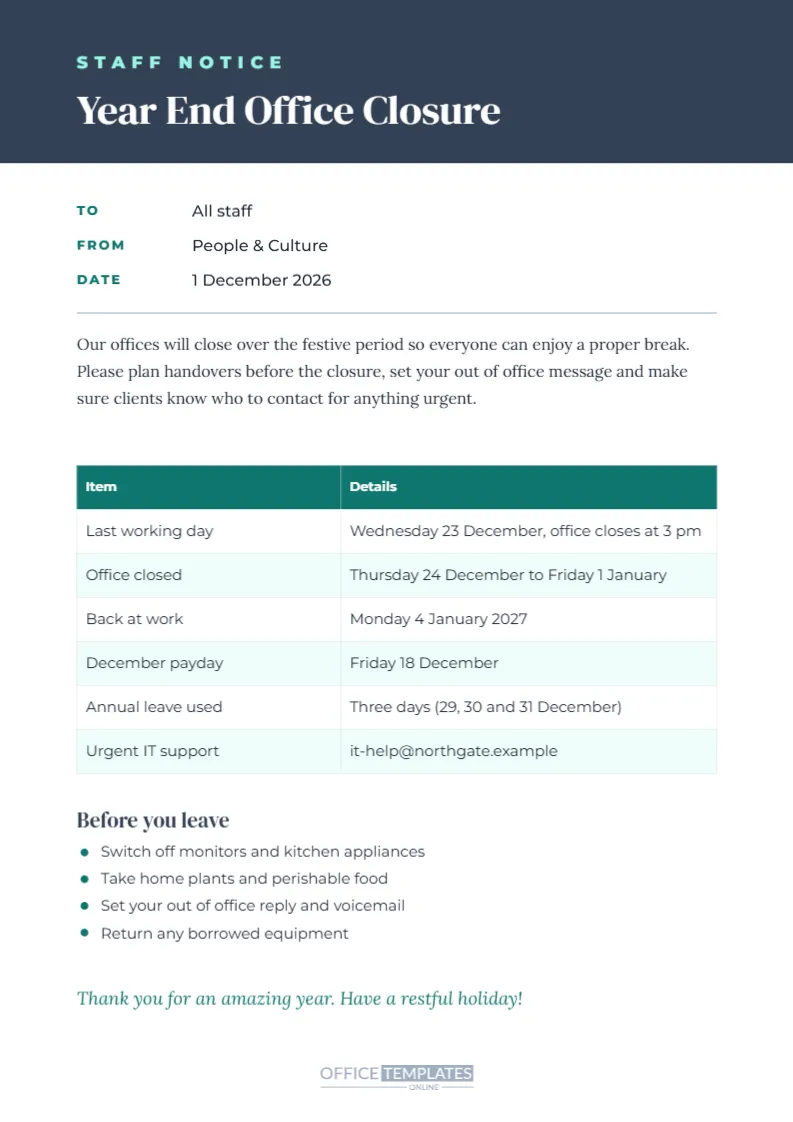
Clinics and offices can use the banner to show closure days and an emergency contact line, replacing the decorative pine with a small icon in their brand colour.
Show Your Hours Front and Centre
Update the dates, download the banner, and add it to your website. A clear holiday hours banner informs every visitor the moment they arrive.