For many families, the Diwali invitation never touches paper. It goes from the host’s phone straight into family groups, neighbourhood chats, and status updates. A card designed for print often looks small and fussy on a phone. This one is designed the other way round: it is a full-screen, 1080 x 1920 pixel vertical invitation, the exact shape of a phone display, WhatsApp status and Instagram or Facebook stories.
Built for the Phone Screen
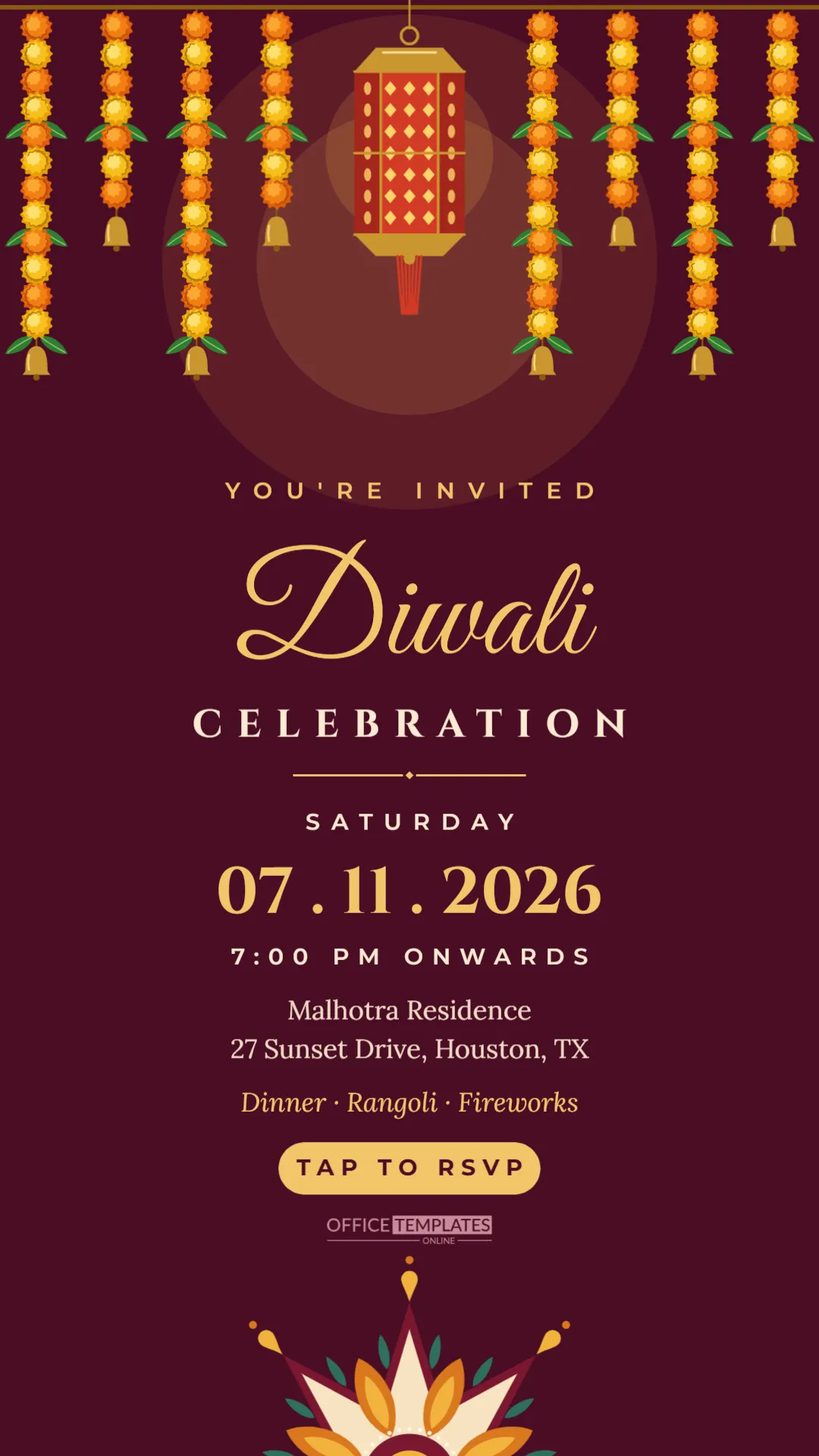
Everything on this invitation is sized to be read without zooming. The headline Diwali is set enormous in gold Great Vibes script, CELEBRATION underneath in spaced ivory Cinzel capitals, and the date as a bold 07. 11. 2026 in large gold numerals. The supporting lines, YOU’RE INVITED, SATURDAY, 7:00 PM ONWARDS, the address, and the activities, are all at least as large as normal phone text. There is no small print to pinch and enlarge.
The design is a deep maroon from top to bottom. Eight marigold garland strands hang from a cord along the top edge, longer and shorter strands alternating, each ending in a brass bell. In the middle of the curtain, a red and gold hexagonal lantern hangs on its own, its lattice glowing, with two soft circles of warm light behind it. At the bottom, a rangoli shaped as an eight-pointed star of lotus petals rises from the lower edge, in maroon, cream, saffron, and gold. Just above it sits a gold rounded button reading TAP TO RSVP and the Office Templates Online mark.
Editing the Invitation on Your Computer
- Open the template in the editor. Because it is a pixel-size design, the canvas appears tall and narrow.
- Click the date numerals and type your date in the same format, for example, 08. 11. 2026. If your audience reads dates month first, write NOV 08 2026 instead to avoid confusion.
- Change the weekday line above and the time line below.
- Replace the host name and address. Keep it to two lines.
- Update the activities line, for example, Puja · Dinner · Card Games.
- Download as PNG for the sharpest result, or JPG for a smaller file.
About the Tap to RSVP Button
A picture sent on WhatsApp cannot be clicked, so the gold button is a visual cue, telling guests that you expect a reply. Pair it with a link or a short instruction in your message. If you use an online RSVP form, paste its link in the message you send with the image. If you prefer replies in the chat, change the button text to REPLY TO RSVP or RSVP BY NOV 1.
Messages to Send with the Invitation
The image does the decorating; the message that goes with it does the inviting. Here are captions you can copy into WhatsApp under the picture.
| Audience | Message to send with the image |
|---|---|
| Family group | Diwali at our place this year! Dinner, rangoli, and fireworks on Saturday the 7th from 7. Please reply with how many of you are coming. |
| Close friends | You are officially invited to our Diwali celebration. Come hungry and wear something sparkly. |
| Neighbours | We would love for you to join us for Diwali on Saturday evening. Just a few doors down, starting at 7 PM. |
| Elders | Namaste. It would be an honour to have you with us for Diwali on Saturday evening. We will call to confirm. |
| Colleagues | Hosting a small Diwali get-together at home on Saturday the 7th. Families welcome. Let me know if you can make it. |
Using It as a WhatsApp Status or Story
Because the canvas matches the status and story format exactly, you can post the same image to your WhatsApp status, Instagram story, or Facebook story without cropping. Keep in mind that story apps place your profile name at the very top and reply buttons at the very bottom. The important text on this design sits well inside those areas: the lettering, date, and address occupy the middle of the canvas, while the top is decorative marigolds and the bottom is rangoli.
Changing the Maroon Invitation Colours
The maroon background can be changed by clicking it. Dark jewel tones look best with gold lettering: royal blue, emerald, aubergine, or near black. The garland strands, the lantern, and the rangoli are editable vectors; select each and change its colour swatches. For example, turn the red lantern teal for a cooler palette, or soften the rangoli to pastel pinks for a baby’s first Diwali party.
Why a Digital Invitation Still Needs Care
A forwarded image can feel impersonal. A few habits make a digital invitation feel as thoughtful as a printed one:
- Send it individually to the people who matter most, not only to a big group.
- Add the guest’s name in your message: Dear Sunita Aunty, we would love you to come.
- Follow up with a voice note or call for elders.
- Send a reminder two days before, with the address as a map pin.
Printing the Invitation if You Need To
Although it is made for screens, the design can be printed. Download as PDF and print on US Letter or A4; the image will appear as a tall strip with margins, which works for a fridge reminder. For a proper printed invitation, the 5 x 7 inch party invitations in this collection are better suited.
WhatsApp Invitation Questions
Will WhatsApp reduce the image quality?
WhatsApp compresses photos it sends. The large text on this design stays readable after compression. For maximum quality, send it as a document instead of a photo.
Can I add a map or QR code?
You can add a QR code from the editor’s QR tool in the space above the rangoli, linking to a map or an RSVP form. Keep it at least an inch wide so phones can scan it from another screen.
Can I add our photo?
Replace the lantern with a circle shape from the Elements panel and use Replace Image to place a family photo there. Keep it the same size as the lantern so the layout stays balanced.
Invite Everyone in a Minute
Type your date and address, download the PNG, and send it to your groups. The marigolds and lantern will be glowing on every phone in the family before the first diya is lit.