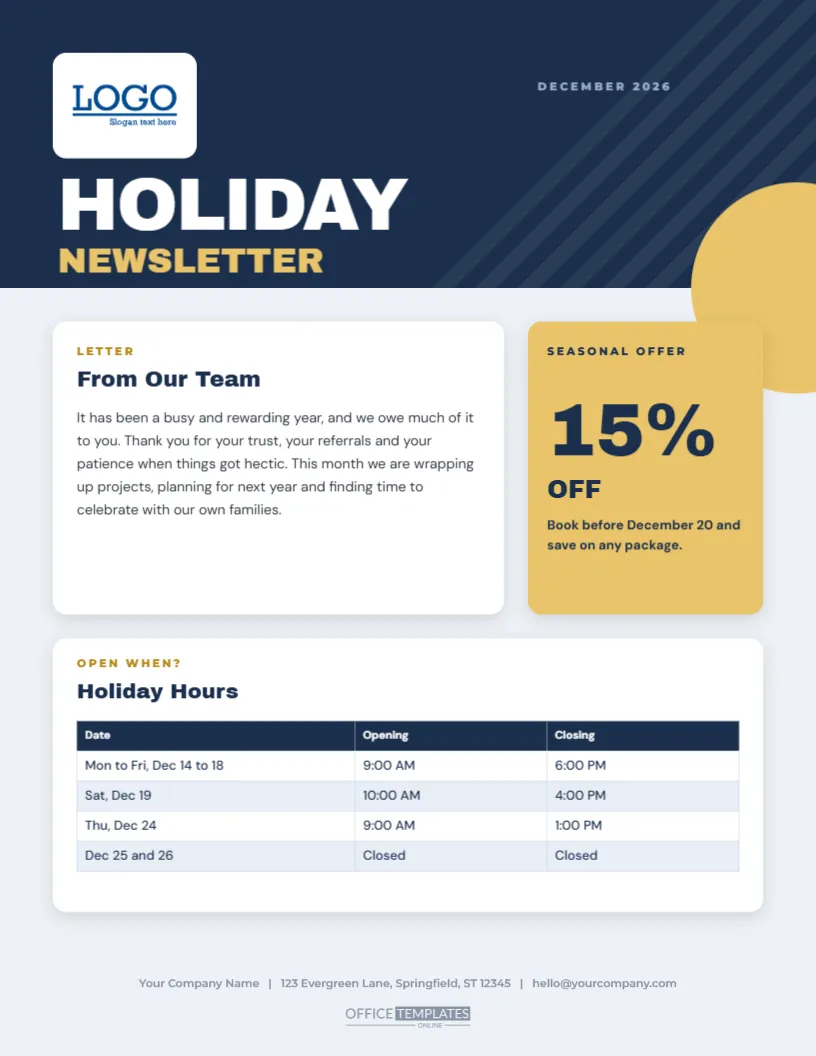
December is when customers are most ready to hear from you, and most in need of practical information. This newsletter gives both in a confident, modern layout. A navy block with faint diagonal stripes holds a white logo tile and the words HOLIDAY NEWSLETTER in heavy white and gold capitals. A letter from your team sits in a rounded white card, a gold card shows a big 15% OFF seasonal offer, and a holiday hours table runs across a second card below.
What the Page Contains
There are four parts: a header with a logo and a title, a letter and a list of news, an offer box, and a table of hours. Together they cover what a customer wants from a December message: a thank you, news they can use, a reason to act, and a clear answer to when you are open. The page leaves little white space for decoration, because the information is the star.
Adding Your Logo
The header slot holds a sample logo. Click the slot and pick Replace Image to add your own picture. A logo with a transparent background looks cleanest on the navy. If your logo is dark, place it on a small white patch, or use a white version. The title next to the logo is text, so you can retype it as December Update, Season’s News, or any title you like.
| Part | Where | How to edit |
|---|---|---|
| Logo slot | Top left of the header | Replace Image |
| Team letter | Left column | Click and type |
| Offer box | Right column | Change the number and the line |
| Hours table | Lower half | Table options for rows, columns and colours |
Editing the Holiday Hours Table
The hours list is a real table object, so you can change it without redrawing anything. Click a cell to type, or select the table and open its options to add rows and columns, change the header colour, adjust the font size and set borders. Add a row for each closure date or a column for a second location. Keep the table to six or seven rows, so it stays easy to read at a glance.
Writing the Team Letter
- Start with a sincere thank you to your customers.
- Mention one or two things you are proud of from the year.
- Say what you will be doing over the holidays.
- Close with a wish and the names of the team.
Choosing a Good Seasonal Offer
The offer box is meant to hold a single, clear promise: fifteen percent off, a free upgrade, or an extra month of service. Choose an offer that costs you little but feels valuable. State a clear deadline, such as December 20, and mention how to claim it. If you have no offer, replace the box with a customer quote, a photo of the team, or a gift card reminder.
Sending the Newsletter
Print copies for the counter and for mailing, and save a PDF for email. For a mailing list, attach the PDF and add a short message in the body of the email, in case the attachment is not opened. A printed copy tucked into every order or invoice in December also reaches customers who do not read email. Keep a log of who has received it.
Questions About the Business Newsletter
Can I add a second page?
Yes. Duplicate the page and replace the content, keeping the header and the footer.
Which fonts are used?
On the business holiday client newsletter page, Archivo Black sets the titles and card headings, DM Sans sets the body text and tables, and Montserrat sets the small labels.
Can I change the navy?
Yes. Select the header band and choose your brand colour.
Does it work for A4?
Yes. Resize the page and check the table width.
Making It Fit Your Industry
A restaurant can replace the news bullets with a seasonal menu, a gym can list class changes, and a shop can add best-selling gifts. A professional service can use the space for tax deadlines or legal changes. The structure stays the same: a thank you, some news, an offer, and a table. The editor lets you change every word in a few minutes.
Keeping a Consistent Newsletter Through the Year
Once you have a design, reuse it each month. Change the colours and the title for each season, and keep the same layout. Customers learn to look for the table and the offer, and your newsletter becomes a habit. A consistent format also saves you time, since only the content changes.
Measuring What Works
Add a code or a phrase to the offer, such as Quote NEWS15, and count how many customers use it. Compare the response with other months. A small test tells you which messages are useful, and it helps you decide what to put in next year’s holiday newsletter. Keep the notes with the file so you can refer to them later.
Adapting the Layout to a Larger Company
If you have several departments or branches, extend the template with a second table listing each location and its holiday hours. Add the manager’s name and phone number to each row. A list of contacts saves customers from searching your website, and it reduces calls to the main switchboard. Keep the first page for the thank you and the offer.
Printing a Professional Finish
For client mailings, print on a smooth white paper of twenty-eight-pound weight or more, using a laser printer for crisp type and an even navy band. A matte finish prevents glare under office lights. If you send hundreds, a short offset run gives a deeper navy than a desktop printer. Fold into thirds for a standard business envelope, and add a compliment slip if you want a personal touch.
If a customer asks for the newsletter in large print, simply enlarge the text boxes and the table font before printing a special copy, and keep the standard version for everyone else. Save a PDF of the finished newsletter in your client folder, so the same layout is ready for next year.