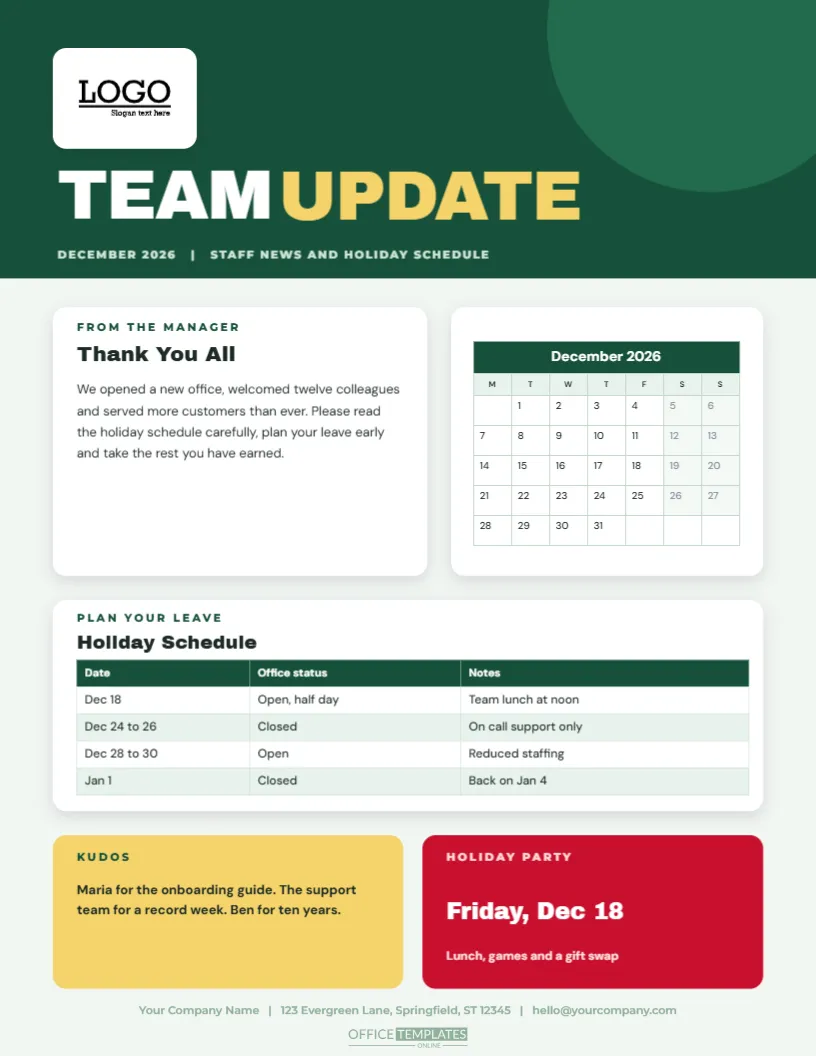
Inside a company, the holiday season brings a flood of practical questions. When is the office closed? Who is on call? When is the party? This internal newsletter answers them on one page. A deep green block holds a white logo tile and TEAM UPDATE in huge white and gold capitals. A manager note sits beside a real December calendar, a holiday schedule table lists each period with office status and notes, and a gold kudos card and a red party card finish the page.
An Internal Newsletter That People Read
Staff notices often get buried in email. A one-page sheet that is posted in the break room and also sent as a PDF is much harder to miss. It gathers the information people need and a little human warmth. The calendar and the table are the practical parts, and the note and the kudos give the page a friendly voice.
The Staff Calendar Object
The December calendar is the editor’s Calendar object, so it is fully editable. Select it and open Calendar Options to change the month, the year, the week start, and the colours. Double-click a day to add a note, such as an early finish or a deadline. The calendar uses a Monday start here, and you can switch to Sunday. It gives staff a visual picture of the month at a glance.
| Part | Where | Editing tip |
|---|---|---|
| Header and logo slot | Top | Replace Image with the company logo |
| Manager’s note | Left column | Click and type |
| Calendar | Right column | Calendar Options |
| Holiday schedule | Middle | Table options |
The Holiday Schedule Table
The table lists date ranges, the office status for each, and a note, such as who is on call. Edit it to match your calendar. Add a row for regional holidays if your staff are in different places. Use the table options to colour the header in your brand colour. State clearly which days the office is closed, and give a contact for emergencies.
Writing the Manager’s Note
- Thank the team for the year, with one specific achievement.
- Remind everyone to read the schedule and plan leave.
- Mention any end-of-year tasks, such as timesheets or expenses.
- Wish everyone a restful break.
Giving Kudos
A list of three or four thank-yous costs nothing and means a lot. Mention people by name and say what they did. Rotate the names across issues, so that everyone is eventually thanked. Ask colleagues to send in suggestions. A culture of recognition is one of the cheapest and most effective ways to build morale, and a printed list makes the praise visible.
Announcing the Party
The pale green box at the lower right is for the holiday party. Replace the sample with the real date, time, and place, and add a line about food, gifts, or dress code. If an RSVP is needed, add a date and a contact. A clear box makes it easy for staff to put the event in their diaries.
Questions About the Staff Newsletter
Can I add a second page?
Yes. Duplicate the page and add content for each department.
Which fonts are used?
On the staff team holiday newsletter page, Archivo Black sets the titles and card headings, DM Sans sets the body text and tables, and Montserrat sets the small labels.
Can I change the green to my brand colour?
Yes. Select the header, the table, and the calendar header, and choose new colours.
Does it work for remote teams?
Yes. Share it as a PDF and add the video call details to the party box.
Distribution
Email the PDF to everyone, pin a printed copy to the notice board, and add the dates to the shared calendar. Ask team leaders to mention it in meetings. The more routes you use, the fewer questions you will receive. Save the file in a shared folder so that it is easy to find later.
Reusing the Template Monthly
Change the month in the calendar, update the table, and rewrite the note, and the same template serves for the whole year. A regular newsletter keeps staff informed and builds a sense of community. Keep a folder of old issues, and review them at the end of the year to see what has changed.
Keeping the Schedule Fair and Clear
Holiday scheduling can cause tension, so be specific. State which days are paid, which are optional, and how on-call shifts are shared. If you have a rota, add a second table with names and dates. Clear rules published in advance prevent misunderstandings, and staff feel respected when they know what to expect.
Making the Newsletter Inclusive
A workplace includes people with different traditions. Use the title Team Update or Season’s Greetings, mention a range of celebrations, and make the party open to everyone. A newsletter that welcomes all staff builds a stronger team than one that assumes a single holiday. Keep the tone friendly and the language plain.
Collecting Content From Departments
Ask each department head to send one or two lines about their team’s year, and a date that others should know. Keep the requests small and specific, and give a clear deadline. A simple form in a shared folder works well. Combine the replies in the Kudos or the news area, and credit the contributors by name.
Adding a Colleague Photo or Team Picture
A newsletter feels warmer with a face on it. Add a photo slot from the editor in a free corner, and rotate a picture of a team or a new starter each month. Replace the image with a clear photograph, and add a short caption with names. Seeing colleagues on the page encourages staff to read it, and it strengthens the sense of belonging.
Printing and Posting Around the Office
Print copies for the kitchen, the lobby, and the meeting rooms, and attach a PDF to the weekly email. A bright coloured border of tape around the printed copy makes it stand out on a crowded board. Update the posted copy whenever the schedule changes, and remove the old one so that nobody relies on it.