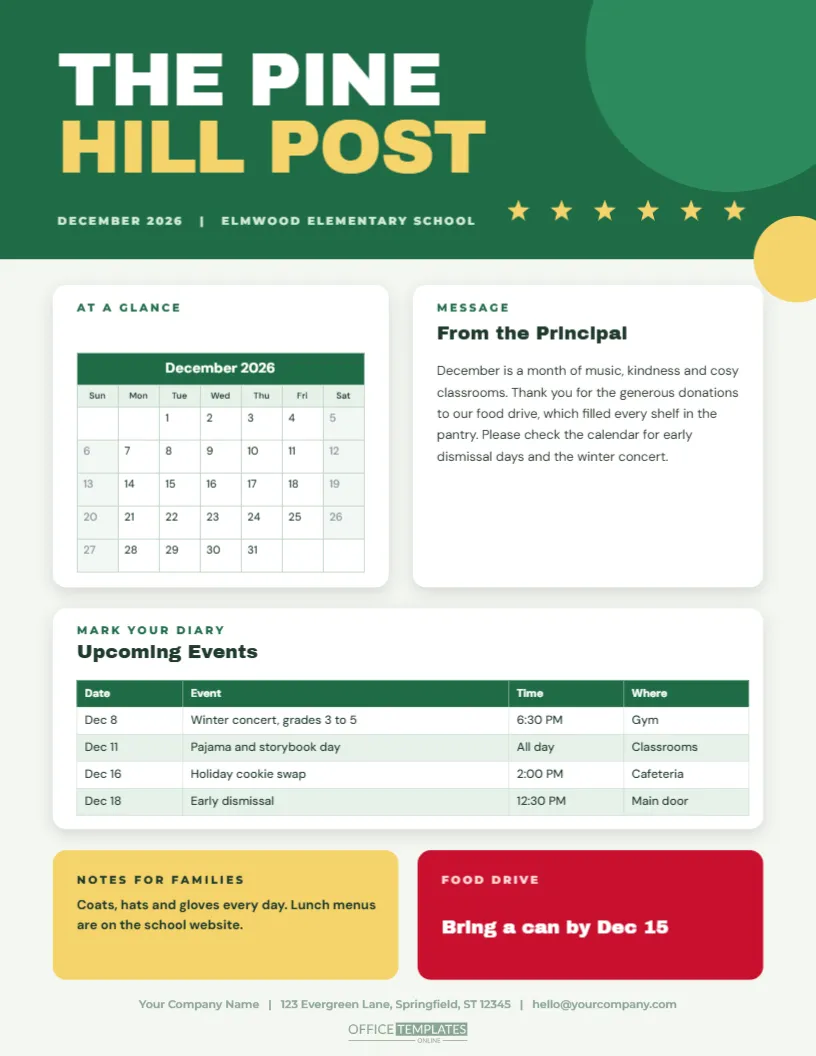
School newsletters go home in book bags and sit on kitchen counters, so they need to be clear at a glance. This one is built for December. A bright green block carries THE PINE HILL POST in huge white and yellow capitals above a row of yellow stars. Under it, a real December calendar sits on a white card beside a note from the principal, an editable events table spans the page, and two coloured cards at the foot hold family notes and a red food drive reminder.
A Calendar That Edits Itself
The calendar is the editor’s own Calendar object, not a drawing. Select it and open Calendar Options to change the month, the year, the first day of the week, the colours and the font. The grid rebuilds itself, so a new month appears in seconds. For a January newsletter, change the month and the title, and the layout is ready. Double-click a day to add notes, such as a concert or a day off.
The Events Table
Under the calendar and the letter, a table lists the key events with four columns: date, event, time, and place. It is a real table object, so you can add a row for each event, remove the ones you do not need, and change the colours. Use short phrases, and put the most important events first. If the school has several events a week, move the extras to a second page.
| Part | Editing | Tip |
|---|---|---|
| Banner and stars | Recolour or retype | Use the school colours |
| Calendar | Calendar Options | Change the month for each issue |
| Principal’s note | Click and type | Keep to about sixty words |
| Events table | Table options | Add or remove rows |
Writing the Principal’s Note
A principal’s note works best when it is short and warm. Thank the families for their support, highlight one or two events, and remind readers of a practical detail, such as the last day of term. Avoid long paragraphs. Parents often read newsletters on a phone screen or between tasks, and a short, clear message is easier to digest than a speech.
What to Include in the Notes for Families
- Winter clothing reminders: coats, hats, and gloves.
- The date the school closes and reopens.
- Where to find the lunch menu and the lost property box.
- Any collections, such as a food drive or a toy appeal.
- A contact number for questions.
Printing the Pine Hill Post
Print on bright white paper for a clean look, or on pale green paper for a seasonal touch. Make enough copies for every child and a few extras for the office. For a digital version, export the page as a PDF and post it on the school website and app. Some families prefer paper, and some prefer a screen, so offer both.
Questions About the School Newsletter
Can I add a photo of a school event?
Yes. Add a photo slot from the editor in the blank space beside the notes.
Which fonts are used?
On the school December newsletter page, Archivo Black sets the titles and card headings, DM Sans sets the body text and tables, and Montserrat sets the small labels.
Can I change the school name?
Yes. Click the small line under the title and type your own.
Does the calendar update by itself?
No. Choose the month you need in Calendar Options before you save.
Sharing Responsibilities Among Staff
Ask each teacher to send two lines about their class, and add them to the page in a separate box. Rotate the editor each month. Sharing the work keeps the newsletter fresh and spreads the load. Keep one master copy of the template, and make a new file for each issue so that you can find the old ones.
Using the Same Layout Through the Year
Change the green to blue for winter, yellow for spring, and orange for autumn, and you have a monthly newsletter that looks consistent. The calendar and the table are always the most useful parts, so keep them. Add a short feature each month, such as a student of the month or a book review.
Involving Pupils in the Newsletter
Invite older pupils to write a short report on a school event or to draw a picture for the masthead. Print the best submissions in the free space. Children are proud to see their work in print, and parents love reading it. A pupil-edited page can be a fine project for a school journalism club.
Making the Newsletter Accessible to All Families
Not every family reads English as a first language, and not every family has a printer. Keep sentences short and avoid idioms, and offer the newsletter on the school website in several languages if you can. Print a few large-type copies for readers with poor eyesight. An accessible page reaches everyone, and it shows that the school values every family.
Adding a Photo of a Class Activity
A photo of children making snowflakes or rehearsing the winter concert brightens the page. Add a photo slot from the editor in the free space beside the notes, and replace the sample image with a picture that is cleared for use. Always follow the school’s photography policy, and avoid naming children in captions unless the families have given consent.
Gathering News Without Chasing People
Set a single deadline each month and tell staff what you need: two lines per class, a photograph, and any date changes. Use a shared form so that the replies arrive in one place. A predictable routine makes the newsletter easy to produce, and it spares the editor from chasing contributions across the corridors on the day before printing.
Printing Costs and Sustainability
Schools care about both cost and waste. Print the newsletter double-sided with a calendar on one side and news on the other, and offer a digital version to families who do not need paper. Use recycled paper where you can. A smaller print run, supported by a good digital copy, saves money and reduces the number of crumpled sheets at the bottom of book bags.