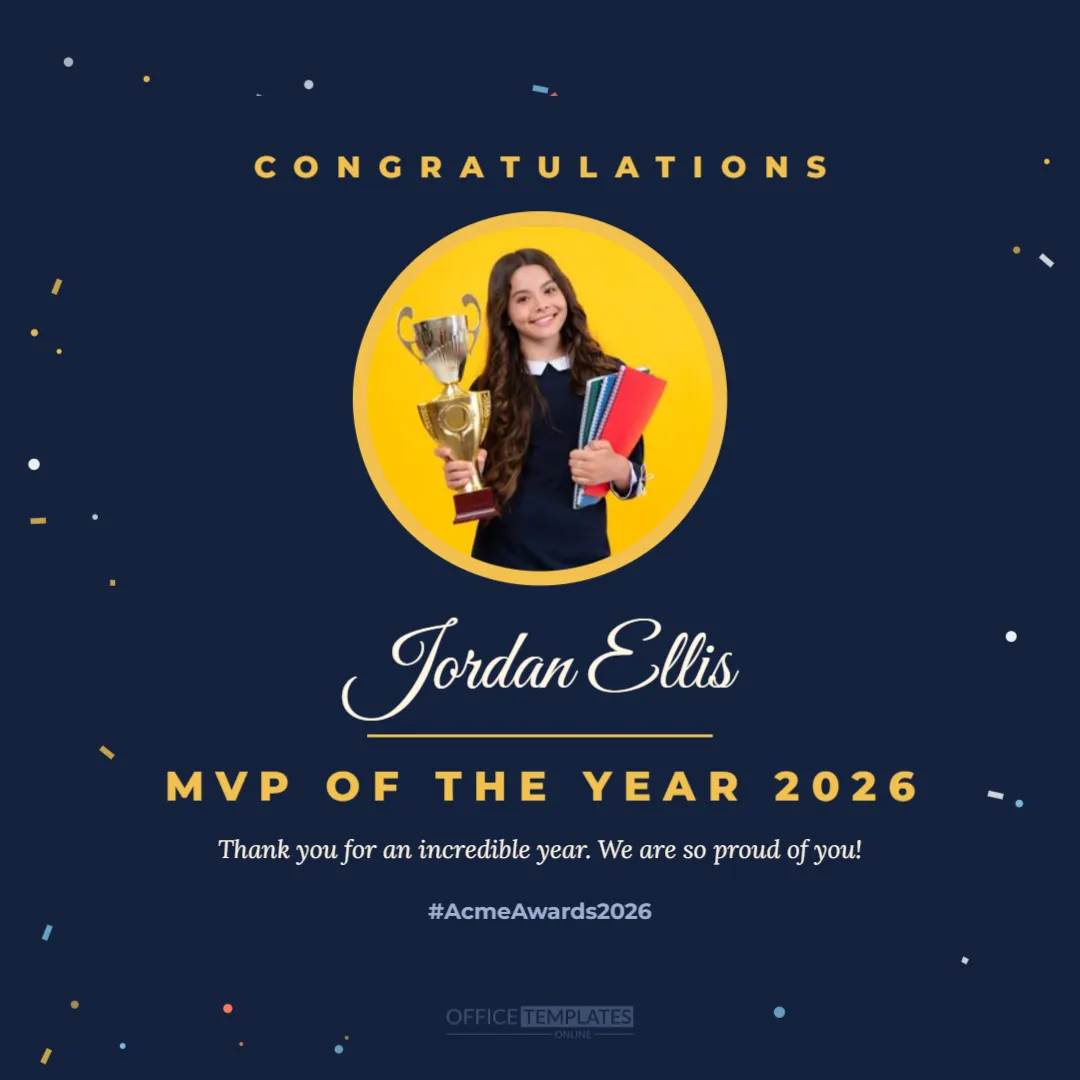
When the awards are over, sharing the winners online extends the celebration to everyone. This square 1080 x 1080 pixel post is made for Instagram, LinkedIn, Facebook, and team chat. Colourful confetti in gold, white, coral and sky blue scatters around the edges of a deep navy background. Congratulations appears in spaced gold capitals at the top, above a large round photo frame circled by a gold ring. Below the photo, the winner’s name is written in large cream script over a gold line, followed by MVP of the Year 2026 in bold gold capitals, a short thank you message and an event hashtag.
Why Share Award Winners Online
Announcing winners on social media celebrates them publicly, lets friends and family share in the moment, and shows customers and candidates that your organisation values its people. Posts about employee recognition often perform well because they are positive and personal. They also give winners something to share on their own profiles.
Adding the Winner’s Photo
Click the round photo frame and choose Replace Image to upload the winner’s photo. A head-and-shoulders photo works best in the circle. You can reposition the photo inside the frame so the face is centred. The gold ring around the frame highlights the winner like a medal.
Editing the Name and Award Title
Replace Jordan Ellis with the winner’s name and MVP of the Year 2026 with the award they won. Keep the award title short enough to fit on one line in bold capitals. For longer titles, reduce the font size slightly.
Winner Post Message and Event Hashtag
The message reads Thank you for an incredible year, followed by the hashtag #AcmeAwards2026. Change the message to suit the winner, and use your own event hashtag to collect all award posts in one place.
Creating a Post for Every Winner
Duplicate the design for each award winner, changing the photo, name, and award title. A consistent series of posts looks professional and creates a story across your feed, with one winner announced each day or all at once in a carousel.
Confetti and Colour Choices
The confetti uses gold, white, coral, and sky blue to feel festive without overwhelming the photo. It is grouped, so you can recolour it to your brand palette or reduce its opacity. Changing the navy background to your brand colour makes the series instantly recognisable.
Posting on LinkedIn
LinkedIn is ideal for workplace awards. Post the image with a short caption describing why the winner was chosen, and tag them with their permission. Professional recognition on LinkedIn can boost both the winner’s profile and your employer brand.
Posting on Instagram and Facebook
The square format fits Instagram and Facebook feeds perfectly. Use the caption to tell the winner’s story, add your event hashtag, and invite followers to leave congratulations in the comments.
Sharing in Team Chat and Intranets
Download the post as a PNG to share in Slack, Microsoft Teams, or your intranet. Colleagues can react and comment, extending the celebration beyond the awards night.
Using the Post for Schools and Clubs
Schools can announce student award winners and sports clubs can share season MVPs. Always obtain permission from parents before sharing photos of children online.
Winner Announcement Wording Ideas
Try: Please join us in congratulating, Your 2026 award winner is, or A huge round of applause for. These phrases work well as captions alongside the image.
Timing Your Winner Posts
Post the first winner the morning after the ceremony while excitement is high. Spread the remaining posts over the following week to keep the celebration going and maintain engagement.
Privacy and Permission
Ask each winner before posting their photo and name publicly. Some people prefer not to appear online, and in that case you can replace the photo with your logo or the trophy icon.
Matching Social Media Templates
Pair this post with the meet the nominees story in this collection for a complete social media campaign: nominees before the event, winners after it.
Saving the Winner Post Template
Save the design to your account and reuse it next year. Updating the photo, name, and award takes just a few minutes per winner.
Winner Post File Formats
Download a PNG for the sharpest text on social media or a JPG for smaller file sizes in messaging apps. The design is sized exactly for square feeds, so no cropping is needed.
Writing a Strong Winner Caption
The image grabs attention, but the caption tells the story. Start with the award and the winner’s name, add one or two sentences about what they achieved, then thank them and invite others to congratulate them. Keep paragraphs short so the caption is easy to read on a phone. Ending with your event hashtag connects the post to the rest of your awards coverage.
Creating a Winners Carousel
On Instagram and LinkedIn, you can combine several winner posts into one carousel. Start with a title slide showing the awards name, then add one slide per winner and finish with a thank you slide. Carousels keep followers swiping and are a neat way to share many winners in a single post without flooding your feed.
Winner Posts for Customer Awards
Businesses that run customer awards, such as Customer of the Year or Loyal Member of the Year, can use the same design to celebrate them publicly. Customers love being recognised, and the post shows others that your business values its community.
Printing the Winner Post for Notice Boards
Although it is designed for screens, the square post also prints well as a small poster. Print it on photo paper and pin it to the staff notice board beside the winner’s certificate so colleagues who are not on social media can see the announcement too.
Adding Your Logo to the Winner Post
For branded posts, add your company logo near the bottom of the design using Upload Image. A small logo in a corner keeps the focus on the winner while making sure everyone knows which organisation is celebrating.