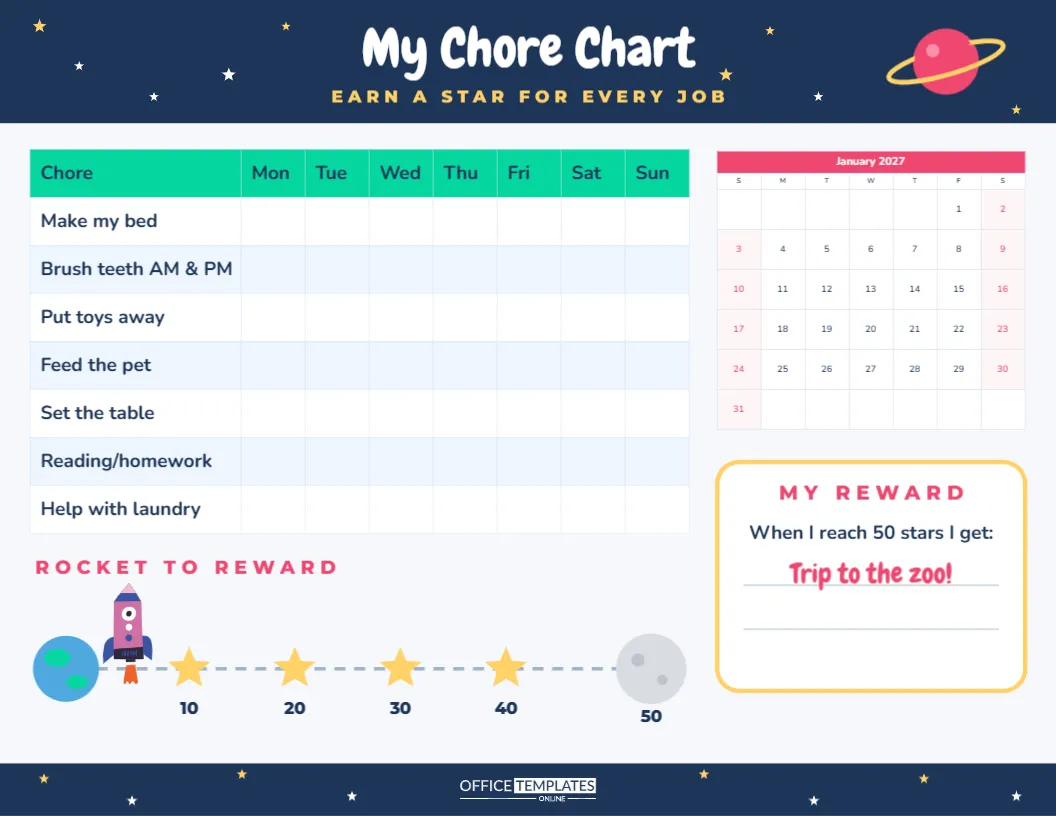
Children are far more willing to help when helping feels like a game. This chore chart turns daily jobs into a space mission: every finished chore earns a star, and every star moves the rocket closer to the Moon and to a reward. Here is a tour of each part of the page and how to use it.
The Starry Space Header
The page is US Letter landscape, 11 x 8.5 inches, on a pale blue-white background. A deep navy header runs across the top, scattered with small white and yellow stars, with a pink-ringed planet on the right. In the middle, My Chore Chart is written in Chewy, a bouncy cartoon font, with EARN A STAR FOR EVERY JOB in yellow capitals underneath. A matching navy strip with stars runs along the bottom of the page, with the OTO logo in the middle.
The Weekly Chore Table
The main part of the page is a chore table with a bright teal header row. The first column lists the jobs, and the next seven columns are the days, Monday to Sunday. The sample chores are:
- Make my bed
- Brush teeth AM & PM
- Put toys away
- Feed the pet
- Set the table
- Reading/homework
- Help with laundry
Each time your child finishes a chore, they draw a star or add a star sticker in that day’s box. Seven chores across seven days give up to 49 stars a week. The table is the editor’s Table object, so you can click any chore to rename it and use the Table options to add or remove rows for more or fewer jobs.
Choosing Chores by Age
| Age | Suitable chores |
|---|---|
| 3 to 5 | Put toys away, feed the pet with help, put clothes in the basket |
| 6 to 8 | Make the bed, set the table, water plants, sort socks |
| 9 to 11 | Load the dishwasher, fold laundry, take out recycling |
| 12 and up | Vacuum a room, help cook dinner, clean the bathroom sink |
Start with three or four chores and add more as the routine settles in. Too many jobs at once can feel overwhelming, especially for younger children.
Rocket to Reward: The Star Track
Below the table is the part children love most. A dotted flight path runs from a small blue and green Earth on the left to a grey Moon on the right. A little rocket sits by the Earth, ready for launch. Along the path are four yellow stars labelled 10, 20, 30 and 40, and the Moon is labelled 50. As your child collects stars, colour in each checkpoint they pass. When they reach the Moon at 50 stars, they have earned their reward.
The track makes progress visible over more than one week, which teaches children that small efforts add up. You can change the numbers (for example, 5, 10, 15, 20 and 25 for younger children) by clicking and retyping them.
The Month Calendar Corner
On the right side, a small month calendar with a pink title row shows the whole month. Use it to mark the day the challenge started, special days like birthdays or trips, and the day the rocket reaches the Moon. It is the editor’s Calendar object, so open Calendar Options to change the month or year, or start the week on Monday.
The Reward Box
Under the calendar, a white box with a golden border is titled MY REWARD, with the line When I reach 50 stars I get: and space to write. The sample says Trip to the zoo!. Agree on the reward together before you start, so your child feels ownership. Rewards do not need to cost money: choosing the family film, a picnic, a later bedtime, baking together, or a day out at the park all work well.
Making the Chart Work for Your Family
Keep the chart at your child’s eye level, perhaps on the fridge or their bedroom door, with stickers or a pen nearby. Praise the effort, not just the result, and avoid taking stars away as a punishment; it is meant to be encouraging. For siblings, print one chart each with their own chores and rewards, so they are not competing with each other. Review the chores every month and update them as your child grows more capable.
Changing Colours, Names and Fonts
Add your child’s name to the title (Maya’s Chore Chart), change the colours of the table header, calendar and reward border, or swap the space theme colours for your child’s favourites. The planets and stars are simple shapes, so they can be recoloured or moved. Fonts are Chewy and Nunito, both Google Fonts, and you can choose any other Google font in the editor.
Printing Tips for Sticker Charts
Download the PDF and print in landscape on cardstock, which holds stickers better than thin paper. For long-term use, laminate the chart or slip it into a plastic sleeve and use dry-erase stars, so you can wipe it clean every week. Print a new copy whenever the rocket reaches the Moon, and keep the finished charts as proof of all the hard work.
Weekly Star Count and Family Check-In
Pick a fixed time each week, such as Sunday afternoon, to count the stars together. Add them up, colour the rocket track up to the right checkpoint, and talk about the week: which chore was easiest, which was hardest, and what could make next week go better. This five-minute chat matters as much as the stars. Children learn to reflect on their own effort, and parents get a chance to notice and praise progress that might otherwise be missed in a busy week.
If a week goes badly, keep the tone light. Missing stars simply mean the rocket travels a little slower; it never goes backwards. That keeps the chart positive, which is what keeps children wanting to use it. Celebrate every checkpoint with a high five, and make the moment the rocket lands on the Moon feel like a real event.
Seven chores, fifty stars, and a rocket ready for launch. Let the mission begin.