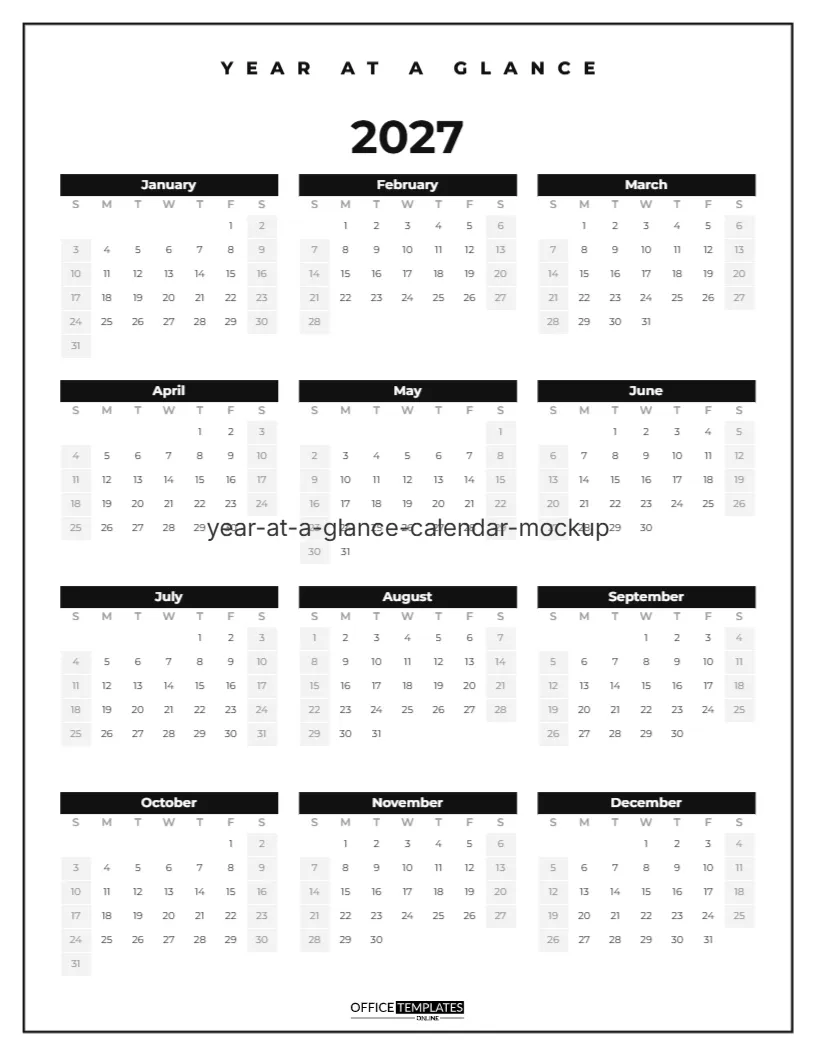
Sometimes you need to see the whole year at once. When does the summer holiday fall? How many weeks until the wedding? Which Friday is the 13th? A Year-at-a-Glance Calendar answers all of it on a single sheet. This minimal version keeps things clean and readable: twelve months, black and white, with nothing to distract from the dates.
Is a One-Page Year Calendar Right for You?
You want to… | One-page year calendar | Month-per-page calendar |
|---|---|---|
See holidays and terms for the whole year | Ideal | Needs twelve pages |
Write several appointments a day | Too small | Ideal |
Spot clashes between big events | Ideal | Harder to compare |
Track a daily habit with ticks | Works well | Works well |
Hang one sheet in a small space | Ideal | Needs a hook and binding |
If most of your answers fall in the first column, read on. If you need room for daily detail, pair this page with a monthly calendar.
Twelve Months on One Page
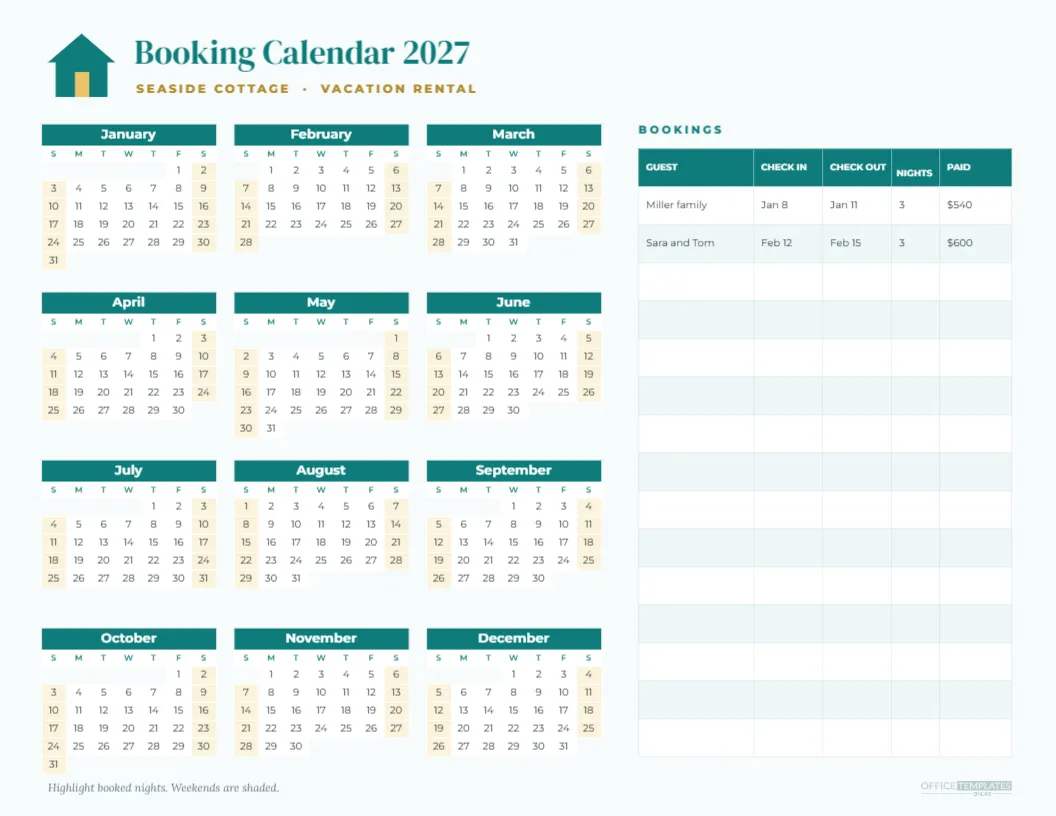
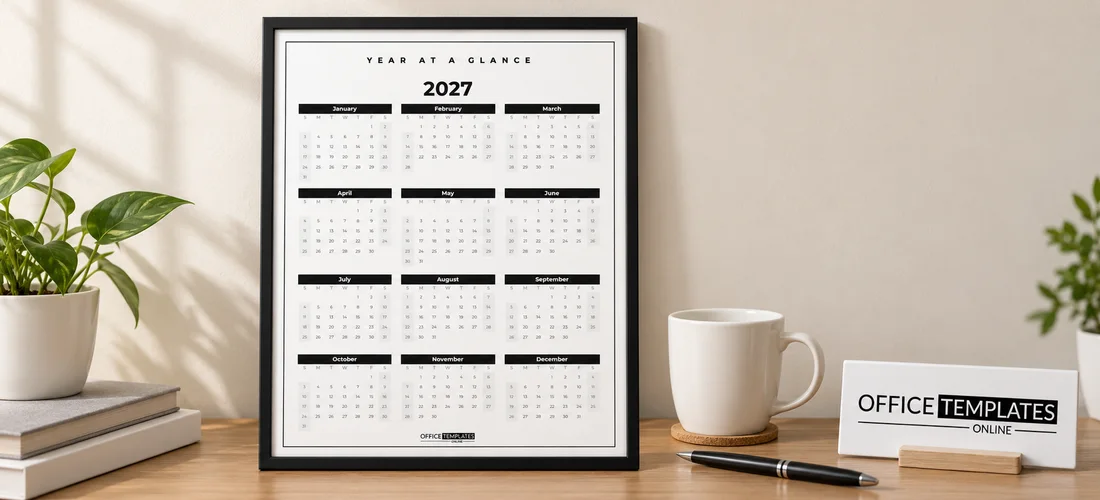
The calendar is US Letter, 8.5 x 11 inches, portrait. A thin black frame runs around the page, with YEAR AT A GLANCE in spaced capitals at the top. Below it, a large 2027 is set in bold Montserrat as the title of the calendar. The twelve months are arranged in a neat grid of three across and four down, from January in the top-left to December in the bottom-right.
Each month has a solid black bar with the month name in white, a row of single-letter weekday initials in grey, and the dates in clear dark numbers. Weekends are shaded in pale grey, so you can see at a glance which dates fall on a Saturday or Sunday. The OTO logo sits at the bottom of the page.
Planning the Whole Year in One Sitting
At the start of the year, spend half an hour with this page and a set of highlighters. Mark school holidays and public holidays first, then birthdays, then planned trips. Next, block out busy work periods. Looking at the year this way often reveals clashes early, such as a deadline in the same week as a family event, while there is still time to change plans. It also shows quiet stretches that are perfect for a short break.
What People Use a Year Planner For
| Use | How to mark it |
|---|---|
| Holidays and time off | Highlight the dates with a coloured marker |
| School terms | Draw a line under term weeks |
| Birthdays and anniversaries | Circle the date and add an initial |
| Project deadlines | Put a small star on the due date |
| Bill due dates | Dot each payment date |
| Habit streaks | Cross off each day you keep the habit |
Marking the Calendar Neatly
Small dates need a light touch. A set of fine highlighters in three or four colours works well: one for personal, one for work, one for family, and one for holidays. Write a small key at the bottom of the page so anyone can read it. Circles and dots are tidier than writing words. If you need to add detail, keep a separate list on the back of the page or in a notebook, numbered to match small dots on the calendar.
A Live Calendar, Not a Picture
The whole year is a single Calendar object in the editor’s Full Year style. That means the dates are calculated, not typed, and the year is a setting. Open Calendar Options to change the year to 2028 or any other year, and all twelve months rebuild instantly with the correct dates. The title row also updates, showing the new year automatically. You can change the week start to Monday, the colours, the font, and the number of columns, all from the same panel.
Weeks Starting on Monday
Many countries and workplaces start the week on Monday. In Calendar Options, change the week start, and every month rearranges so Monday is the first column. Weekends then sit together at the end of each row, which many people find easier for planning work weeks.
Customising Colours and Layout
The minimal black-and-white palette suits any room and prints cheaply. To add colour, open Calendar Options and change the month bar colour, the weekend shading or the title colour; a single accent colour, such as navy, terracotta or sage, looks elegant. Prefer a landscape layout? Change the page size and set the calendar to four columns. Need larger dates? Increase the mini cell size in Calendar Options. The frame and label are ordinary shapes and text, so they can be recoloured or removed.
A Year Calendar for Teams and Offices
Offices often keep one year calendar per team on the wall. It becomes the place where holidays, conferences, product launches, and busy seasons are visible to everyone. Ask each person to mark their own leave in a personal colour, and the team can spot clashes immediately. Because this design is so plain, it looks professional in any office and works as a neutral background for colourful markers.
Where to Hang a Year Calendar
- Inside a kitchen cupboard door, for family planning.
- Next to a desk, for project and holiday planning.
- On a classroom noticeboard, for term dates.
- In a planner or binder, as the first page of the year.
- On the fridge, held with magnets, for quick reference.
Year Calendar FAQs
Can I change the year?
Yes. Open Calendar Options and set any year; the dates and title update.
Can I make the dates bigger?
Yes. Increase the mini cell size in Calendar Options, or print on a larger sheet.
Can I show week numbers?
Week numbers are not part of the calendar, but you can add them as small text beside each row.
Does it work in landscape?
Yes. Change the page orientation and set the calendar to four columns.
Can I add holidays?
Mark them by hand, or add a short list of holidays as text below the calendar.
Printing the Year at a Glance
Download the PDF and print on bright white paper or card. Because the design is mostly white, it uses very little ink and prints crisply on any printer. For a wall version, print at a larger size, such as tabloid (11 x 17 inches), at a print shop; the calendar scales cleanly. Laminate it if you want to use dry-erase markers and wipe it clean as plans change.
Print one page, grab a highlighter, and see 2027 all at once. The year looks a lot more manageable from here.