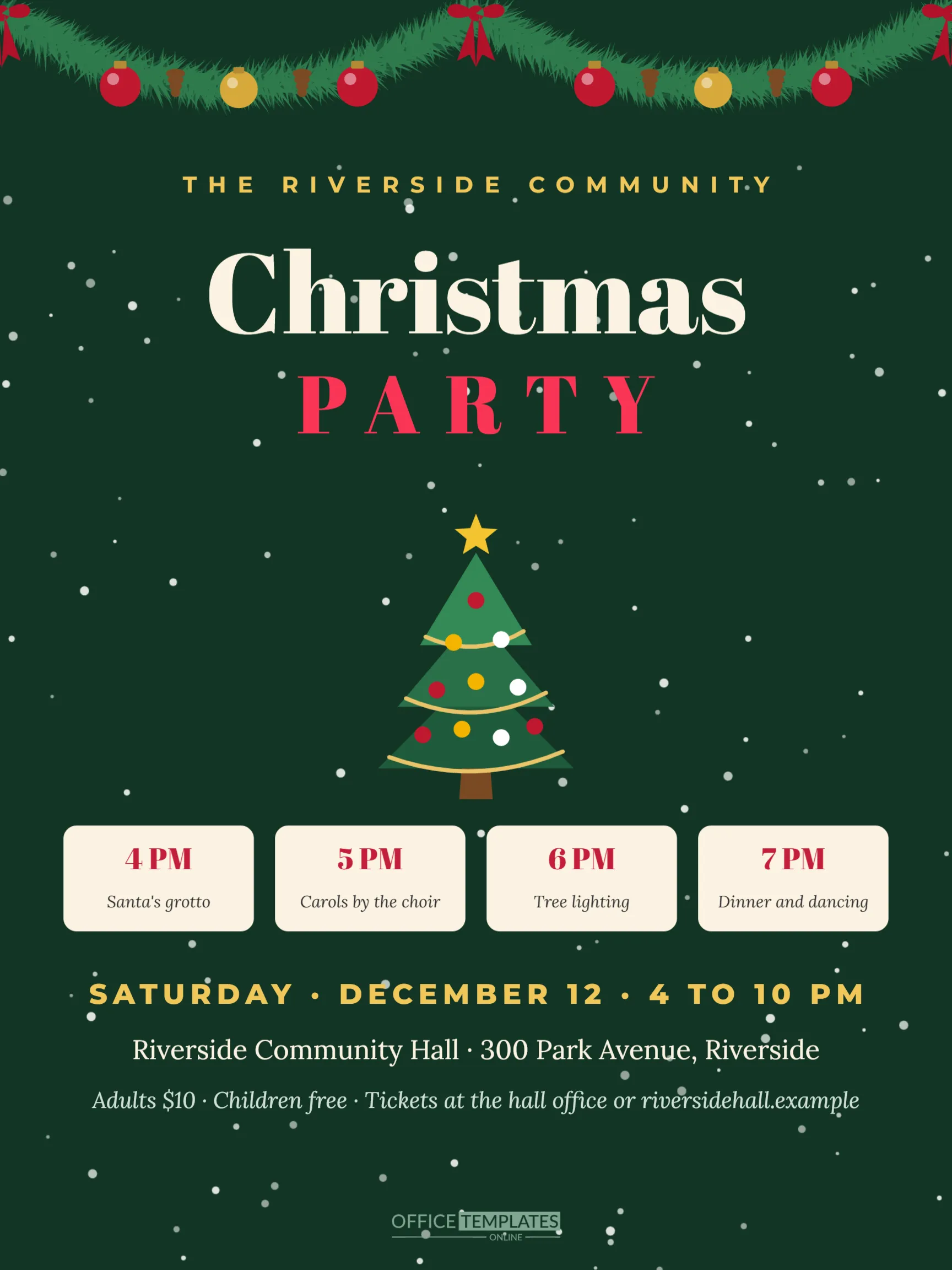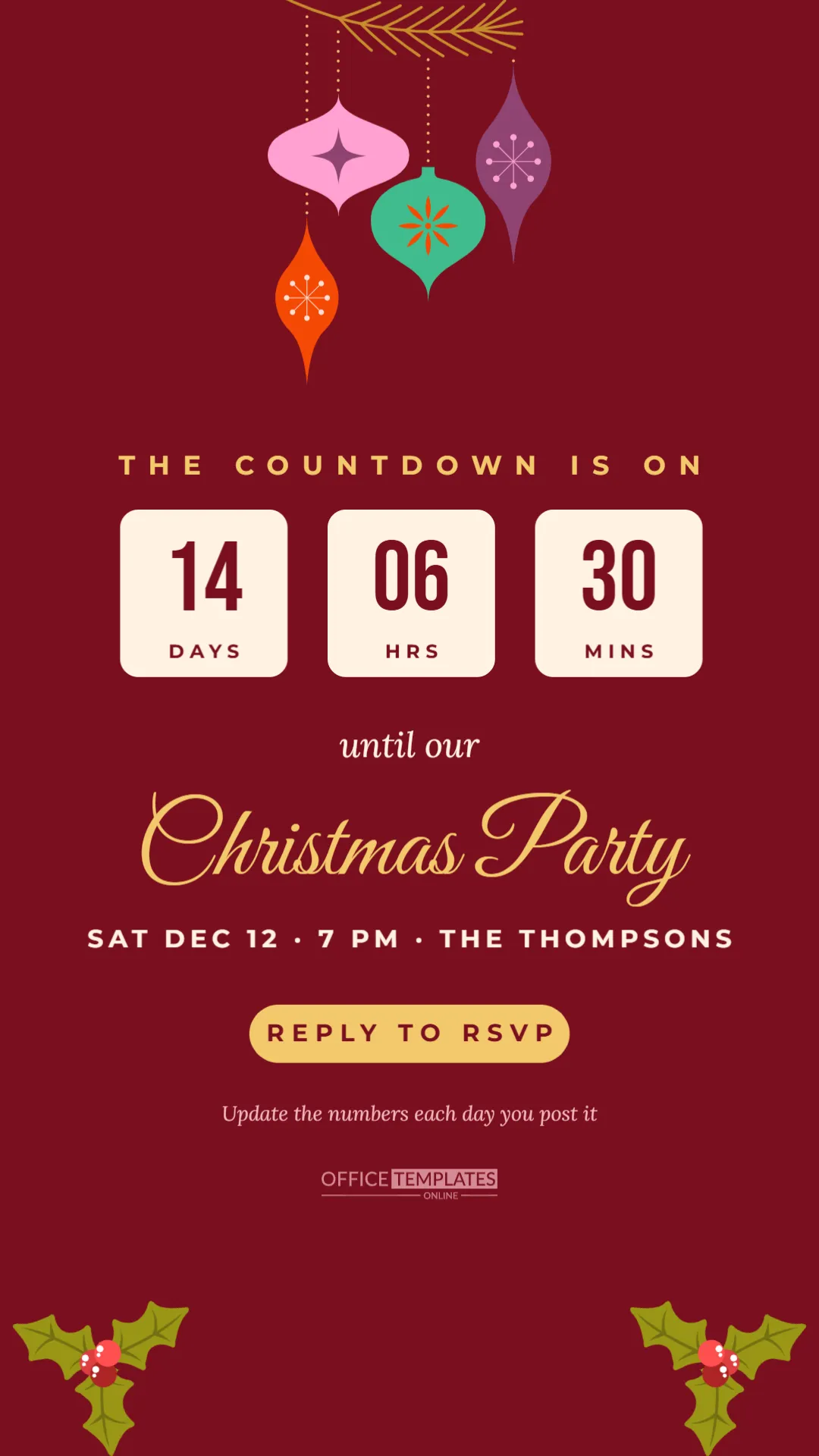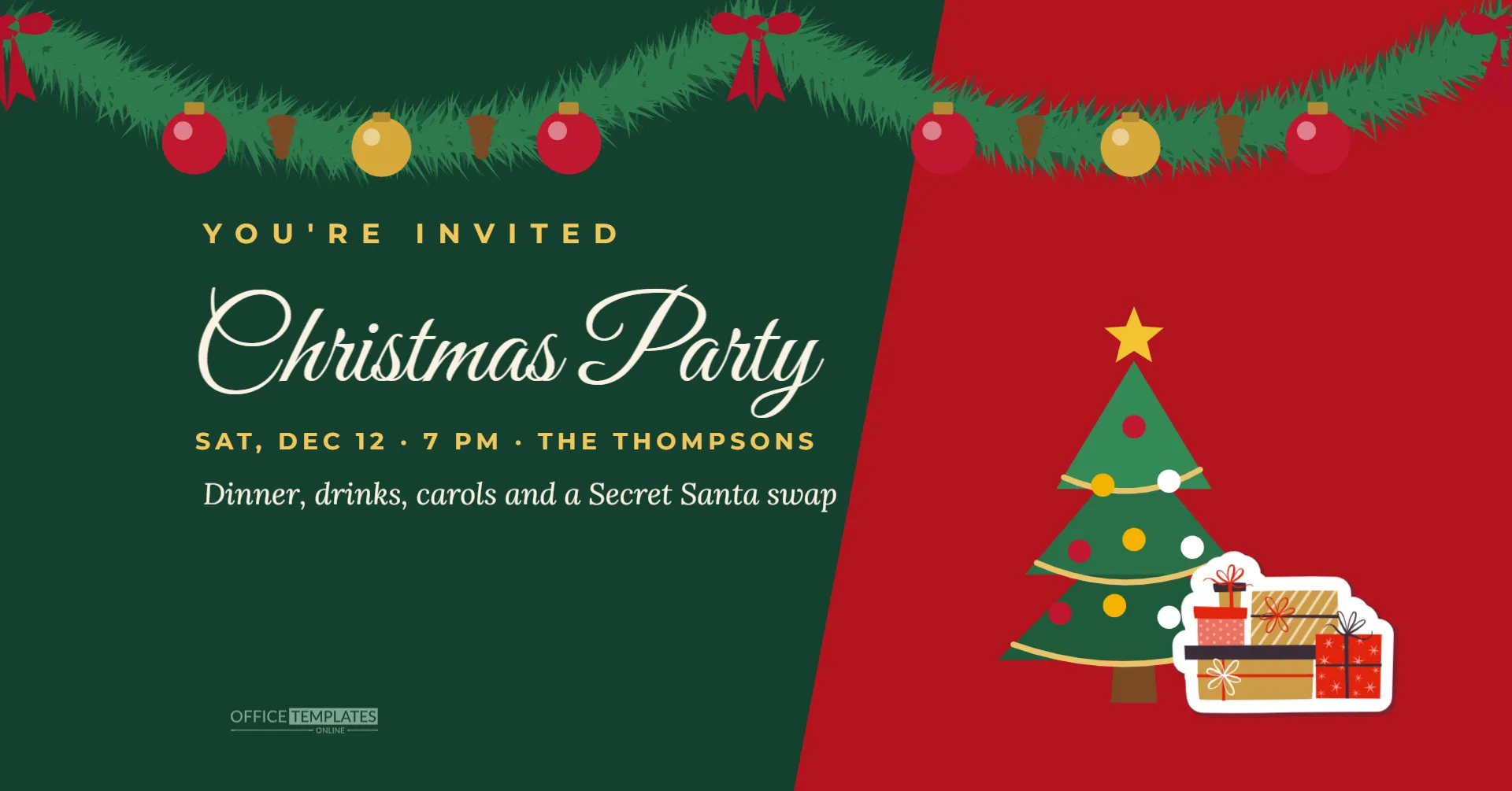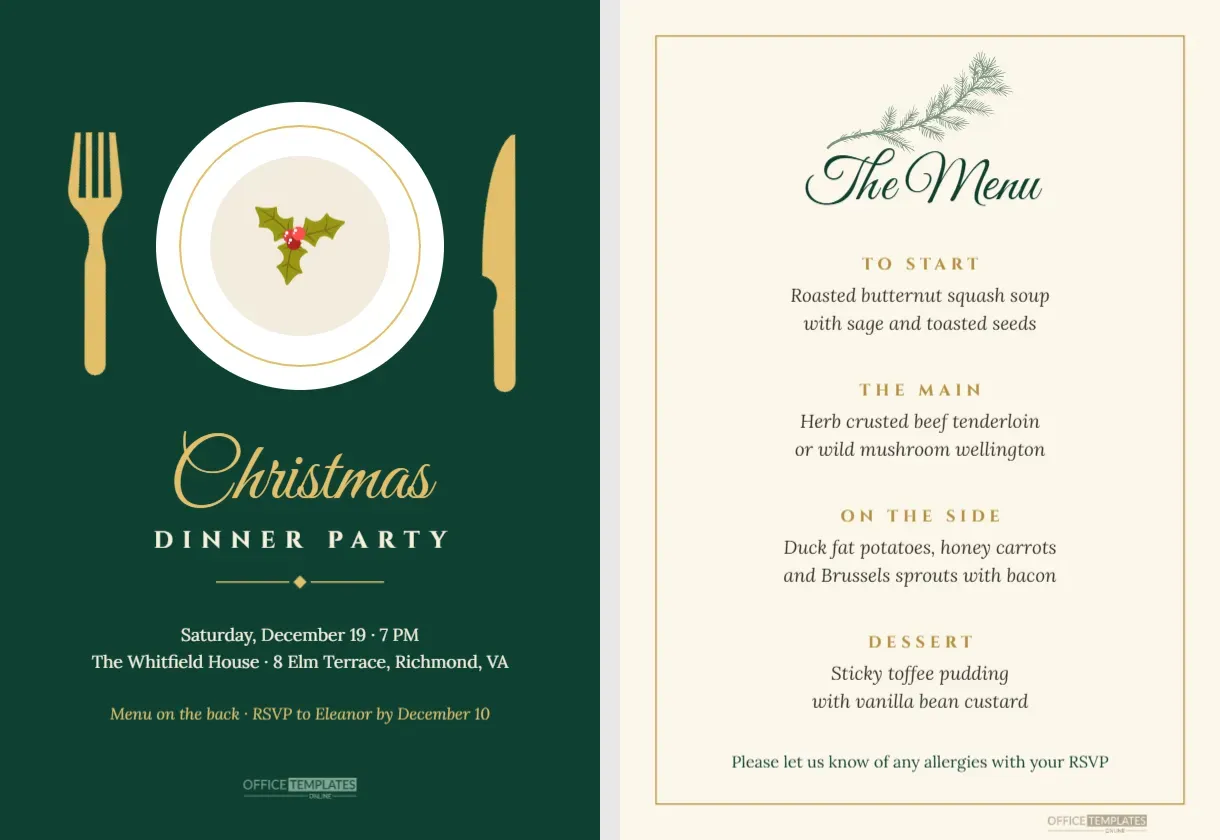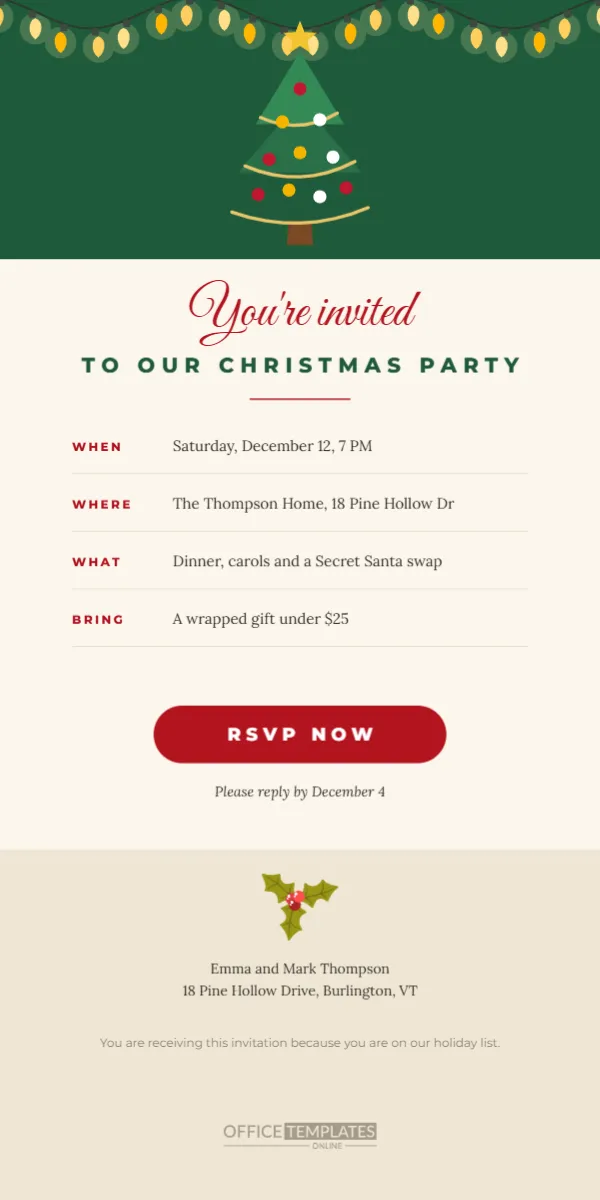
Email is still the most reliable way to invite colleagues, clubs, and extended family who are not in the same group chat. A plain text email gets lost among end-of-year newsletters and sales; a well-designed invitation stands out. This template is a complete email invitation graphic, 600 pixels wide and 1200 pixels tall, the standard width for email content. It has a green header with warm string lights and a decorated tree, a script title, four rows of party details, a bold red RSVP button, and a soft beige footer with the hosts’ names.
Built to Email Proportions
Most email designs are 600 pixels wide because that width displays well on desktop email apps and scales neatly on phones. The 1200-pixel height gives room for a full invitation without endless scrolling. The layout follows the familiar structure of a well-designed email: a header that sets the mood, a headline, the key information, a call to action, and a footer. People recognise this structure instantly and know where to look.
Section by Section
The header is evergreen with a string of warm bulbs across the top and a small decorated tree sitting on its lower edge. Below it, on a cream background, You’re invited is written in red Great Vibes and TO OUR CHRISTMAS PARTY in spaced green capitals, with a short red rule. Four rows follow, each with a red label on the left and the details on the right, separated by thin lines: WHEN, WHERE, WHAT, and BRING. A red rounded RSVP NOW button sits below, with a reply-by line under it. The beige footer holds a holly sprig, the hosts’ names and address, a small line explaining why the recipient is receiving the email, and the brand mark.
How to Use It in an Email
There are two common ways to send this design. The first is to download it as a single image and insert it into the body of an email in your normal email app or email marketing tool. The second, for more advanced users, is to slice it into sections, such as the header, the details, and the button, and place them in an email builder so the button can link to a form. In both cases, add the key details as text in the email too, because some email apps block images until the reader allows them.
Making the RSVP Button Work
In an image, the RSVP button is not clickable on its own. Wrap the whole image in a link to your RSVP form or a mailto link in your email tool, so clicking anywhere on the invitation opens the reply. Alternatively, add a real text button below the image linking to the form. Make the subject line clear, such as You’re invited: Christmas Party, Saturday, December 12, so recipients know what the email is before they open it.
Editing the Details Rows
Click each value to change it. The sample reads Saturday, December 12, 7 PM; The Thompson Home, 18 Pine Hollow Drive; Dinner, carols, and a Secret Santa swap; and A wrapped gift under $25. Keep each value to one line so the rows align neatly. To add a fifth row, such as DRESS or PARKING, copy one label, its value, and its line, paste them, and move the button down slightly.
Alt Text and Accessibility
When you insert the image into an email, add alt text describing it, such as Christmas party invitation, Saturday December 12 at 7 PM at the Thompson Home. Screen readers read this text aloud, and it also appears when images are blocked. Repeating the details in plain text below the image ensures everyone can read them.
Sending to Large Lists
For a company, club, or school list, use an email marketing tool rather than a personal inbox, so messages are not flagged as spam and replies can be tracked. Personalise the greeting with the recipient’s name if your tool allows it. Test the email by sending it to yourself first, and check it on a phone and a computer, in light and dark mode.
Recolouring the Email Invitation
Click the green header to change its colour to match your brand or theme. The red title, labels, and button can be changed to any accent colour; keep strong contrast between the button and its text. The footer colour can be adjusted to match. The tree, lights, and holly are editable vectors.
File Size Tips
Large images can load slowly on mobile data. Download the design as a high-quality JPG rather than PNG to keep the file small, and check that the text stays sharp. Most email tools also compress images; preview the result before sending.
Reminder Emails
Send a short reminder a few days before the party, reusing the header and title with a new line such as See you on Saturday. Keep the details rows so guests can find the address quickly on their phones.
Email Invitation Questions
Can I print it?
Yes, but the tall shape is designed for screens. For print, the 5 x 7 invitations in this collection are better.
Can I add a logo?
Add a shape in the header and use Replace Image to place your logo.
Why is there a line about the holiday list?
It reassures recipients why they received the email, which is good practice for larger mailings. Delete it for personal emails.
Personal Touches in a Group Email
Even when sending to many people, a personal line makes a difference. If your email tool allows merge fields, start the message with the recipient’s first name. For smaller lists, send emails individually with a short personal sentence above the invitation, such as: It would not be Christmas without you, Sam. Recipients are far more likely to reply to an email that feels written for them, and the beautiful invitation below does the rest.
Send an Invitation That Stands Out in the Inbox
Fill in the rows, link the button, and send the email. A beautiful invitation makes your party email people actually open it in a busy December inbox.