Many stores now run their biggest Black Friday deals online, but printed flyers still reach people in the real world: in shopping bags, on notice boards, at the till, and in the mail. A QR code bridges the two. This flyer is built around a big square space for your QR code, so customers can scan it with their phone and land straight on your sale page. Three numbered steps and a promo code make the journey simple.
Designed Around a QR Code
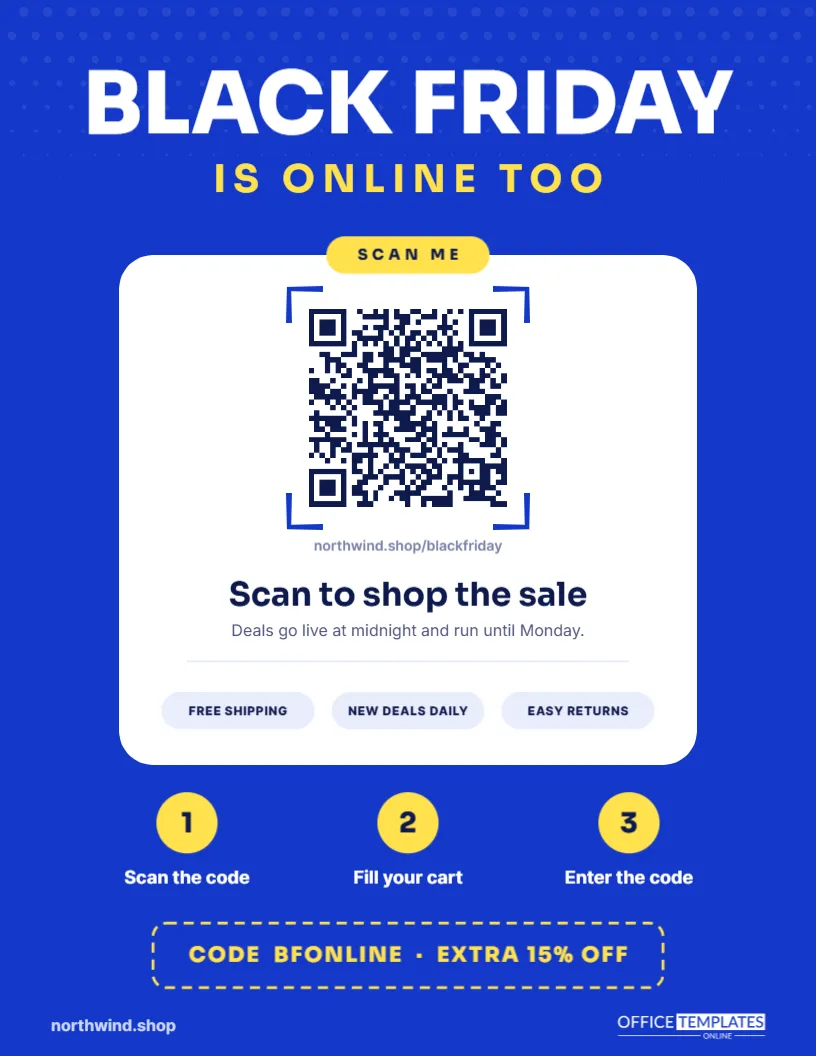
The centre of the page is a white rounded card with a square image slot near the top. Under it, small grey text says Replace with your QR code. Generate a QR code that links to your Black Friday page, save it as an image, and use Replace Image to drop it into the slot. The square shape keeps the code undistorted.
Creating a QR Code That Scans Reliably
Use a short link so the code stays simple, and make sure it has a quiet margin of white around it. Test it with several phones before printing. Dark codes on a white background scan best; avoid placing the code on coloured backgrounds or making it smaller than about an inch and a half in print.
The Cobalt and Yellow Palette
The page is a bold cobalt blue with a faint dot pattern at the top, white headlines, and yellow accents. BLACK FRIDAY sits in heavy white Sora, and IS ONLINE TOO follows in spaced yellow capitals. Blue suggests technology and trust, which suits an online shop, and yellow keeps the page energetic.
The Pointer Cursor
A small navy cursor arrow with a white outline points at the QR space. It is a playful cue that says click here, or in this case, scan here. It also reminds people that the flyer leads to a website. Move or delete the cursor if your code needs more room.
Three Numbered Steps From Scan to Checkout
| Step | What the customer does |
|---|---|
| 1 | Scan the code |
| 2 | Fill your cart |
| 3 | Enter the code |
Each step has a yellow numbered circle and a short white label. Three simple steps reassure customers who are less comfortable shopping online.
The Dashed Promo Code Box
A dashed yellow box near the bottom reads CODE BFONLINE, EXTRA 15% OFF. A code gives you a way to measure how many sales came from the flyer, because only flyer readers know it. Set the code up in your online store before printing, and choose something short and easy to type.
Measuring Results From a Printed Flyer
Printed promotions are often hard to measure. A unique QR link and a unique code solve this. Your website analytics show how many people scanned, and your order system shows how many used the code. Next year, you will know exactly how valuable the flyer was.
Customising the Shop Online Flyer
- Create a QR code linking to your sale page and test it.
- Replace the square image slot with the QR code.
- Edit the line under the code with your sale dates.
- Change the promo code and discount.
- Update the website address at the bottom.
Writing the Line Under the QR Code
The line under the code reads: Scan to shop the sale; deals go live at midnight and run until Monday. Tell customers what they will find and how long it lasts. Clear timing prevents frustration if someone scans before the sale starts.
Where to Distribute the Flyer
Put the flyer in every order you ship in November, hand it out at markets and pop-up events, place it in partner shops, and include it in local mailings. Each copy is a small doorway into your online store.
Printing the QR Flyer
The QR code must print sharply. Use the highest quality setting and avoid scaling the flyer down. The cobalt background needs good colour coverage, so check one copy before printing many. Matte paper avoids glare that can make codes harder to scan.
Using the Flyer as a Digital Image
When posting the flyer online, a QR code is less useful because people are already on their phones. Instead, add the link in the post text and keep the code for print. You can also replace the code with a product photo for the digital version.
Restaurants, Events and Services
The same layout works for restaurant menus, event tickets, booking pages and app downloads. Change the steps to match the journey, such as scan, choose a time, confirm, and replace the promo code with an offer or a booking reference.
Accessibility for Customers Without Smartphones
Not everyone scans codes. Keep your web address printed clearly on the flyer, as it is in the footer, and consider adding a phone number for orders. Offering more than one way to shop ensures nobody is left out of your sale.
Keeping the Online Sale Page Ready
A QR code is only as good as the page it opens. Make sure your sale page loads quickly on mobile, shows the deals immediately, and explains how to use the promo code. Test it on a slow connection, because many people will scan from a store or a car park.
Choosing What the QR Code Should Open
Link the code to a page that shows the Black Friday deals straight away, not your home page. A dedicated landing page with the promo code already explained shortens the journey from scan to cart. Fewer clicks mean more customers complete their purchase on the first visit.
Testing the QR Flyer Before a Large Print Run
Print one copy, scan it with several phones in normal light and in dim light, and open the link on mobile data. Fix anything slow or confusing before printing hundreds. A broken code on a printed flyer cannot be corrected once it has been handed out.
Shop Online QR Flyer Questions
Does the template generate a QR code?
No. Create one with a QR generator, then place it in the image slot.
Can I use a smaller QR code?
Keep it at least about 1.5 inches wide in print so phones can read it.
Can I remove the cursor?
Yes. It is a simple shape. Delete it if you need more space.