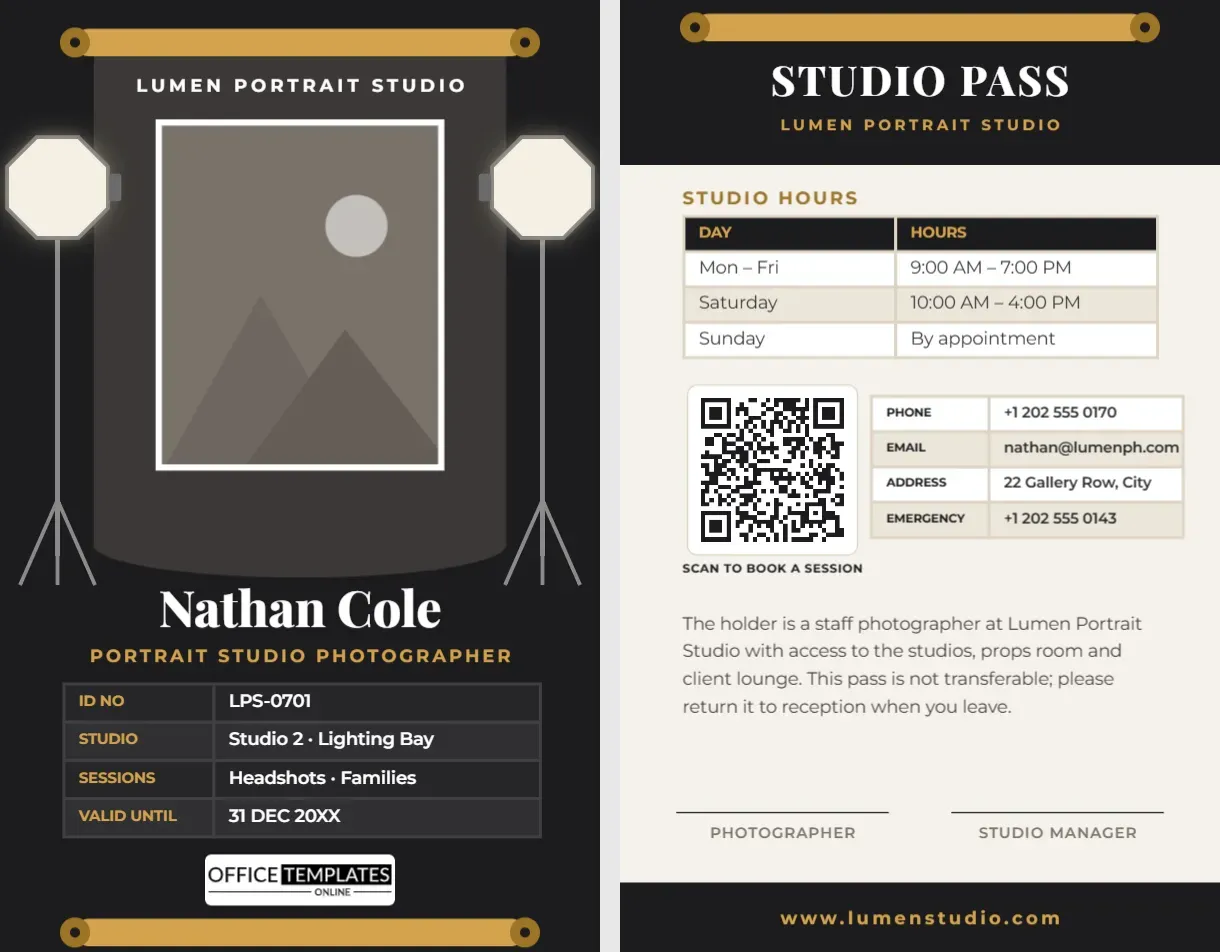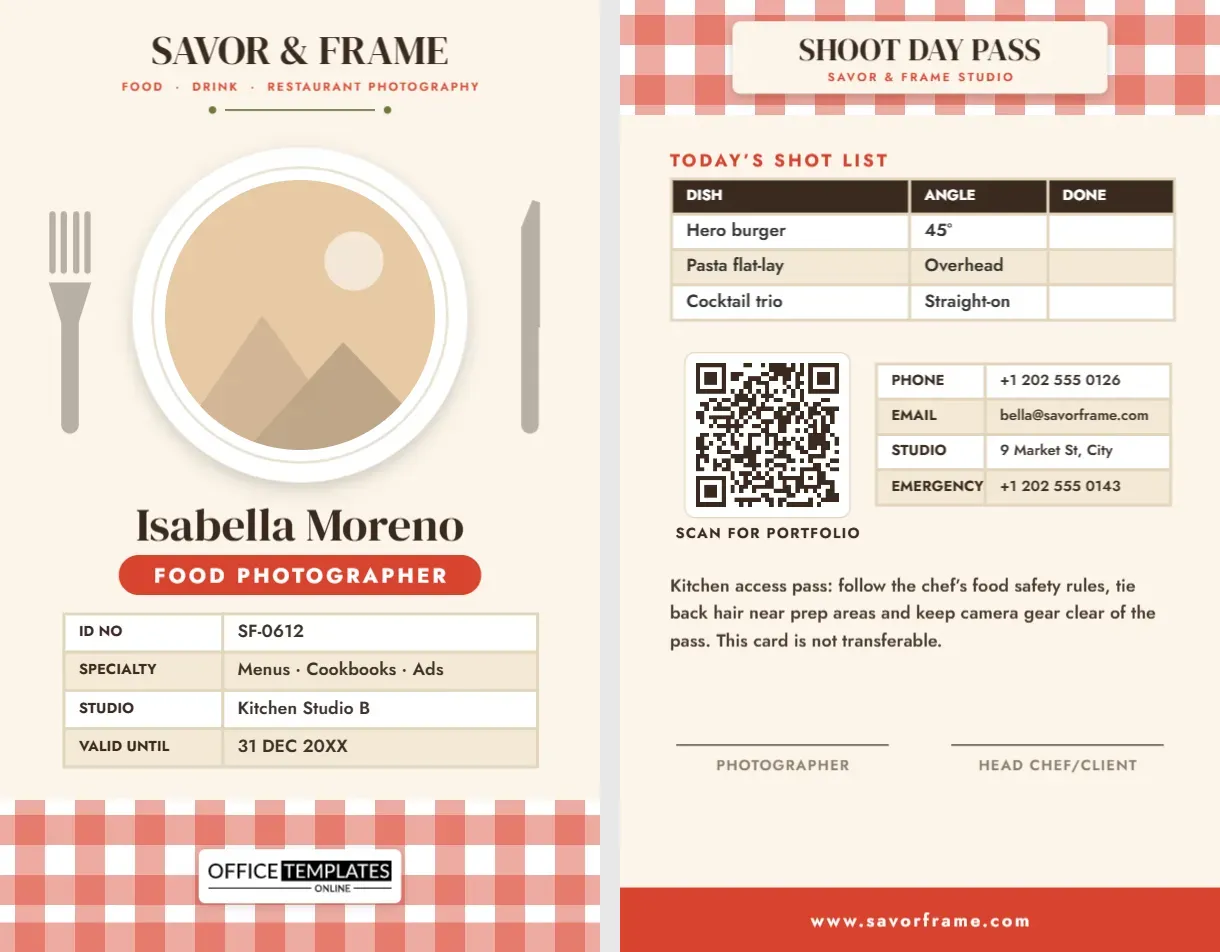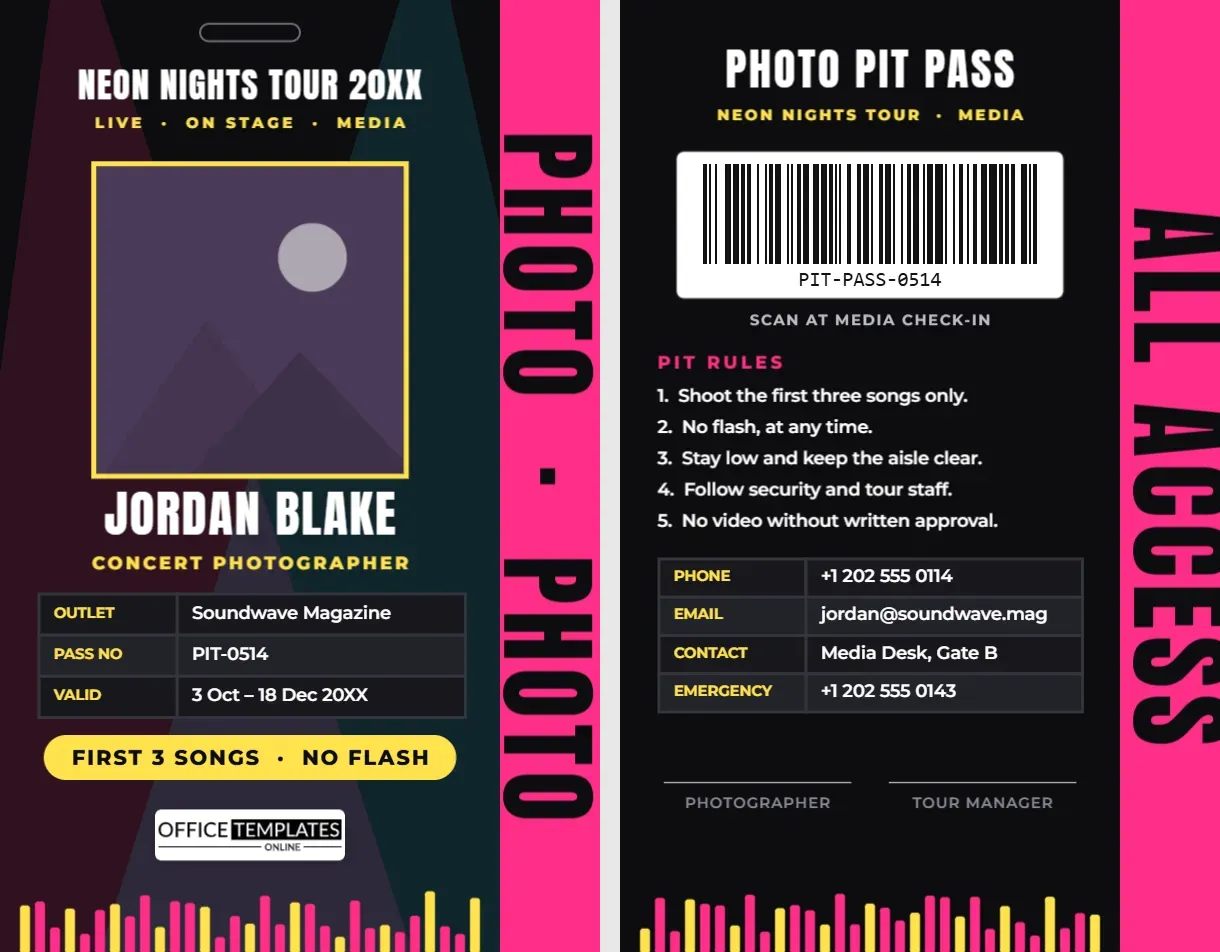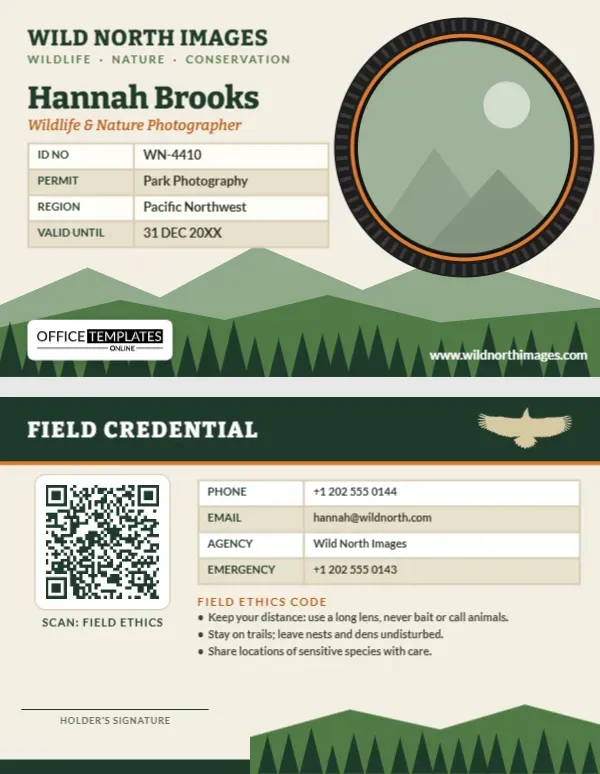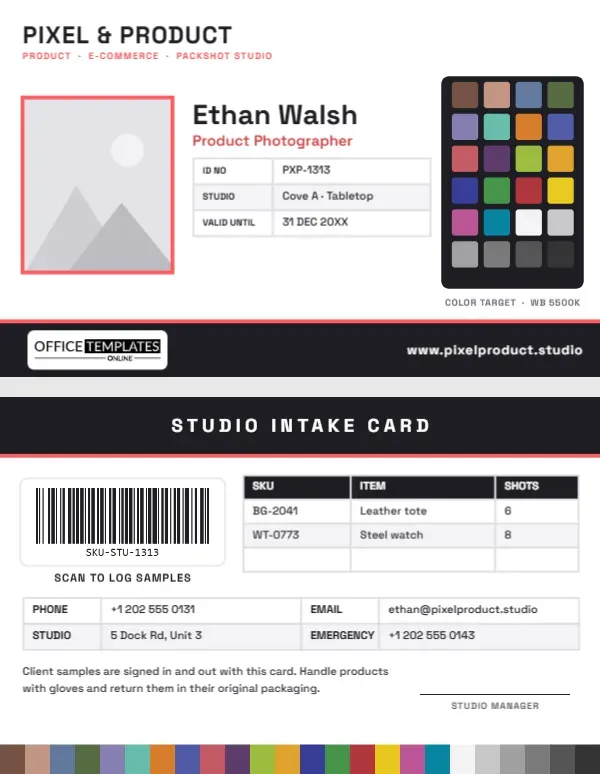
Product photography is a job of precision. Colours have to match the item in the box, whites have to be truly white, and every sample that comes into the studio has to leave again in the same condition. That makes product studios more like small warehouses than creative lofts, with check-in sheets, SKU lists, and staff who need to be identified when they collect samples from a client’s stockroom. This Product Photographer ID Card is built for that world. On the front, it wears the most recognisable tool in the studio, a colour target chart, and on the back it turns into a studio intake card with a barcode and a SKU log.
The Colour Chart as a Badge
The card is horizontal, a 3.375 x 2.125 inch CR80, with a crisp white background. At the right sits a charcoal panel holding 24 small colour patches in six rows of four: earthy skin tones, sky blue, foliage green, orange, purple, yellow, primary red, green and blue, magenta and cyan, and a row of neutral greys from white to near black. It is modelled on the colour checker charts photographers place in the first frame of a shoot to set white balance and build colour profiles. Under the panel, a tiny caption reads COLOR TARGET · WB 5500K.
On the left, PIXEL & PRODUCT heads the card in Space Grotesk, a clean technical sans-serif, with Product · E-commerce · Packshot Studio in coral. Your photo sits below with a coral frame, and beside it your name, Ethan Walsh, on the sample, and Product Photographer in coral, with a compact table for ID number, studio area (Cove A · Tabletop), and expiry date. A charcoal band runs along the bottom with a thin coral line on top, carrying our logo on a white plate and your studio website in white.
Studio Intake Card on the Back
The back is designed for the busy reality of an e-commerce studio:
- STUDIO INTAKE CARD in a charcoal header with a coral rule.
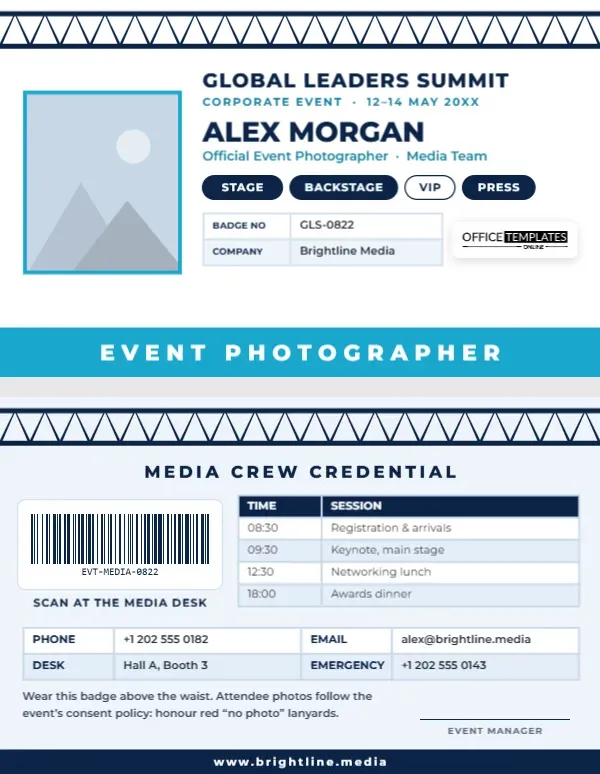
- A barcode labelled Scan to log samples, for studios that scan staff cards when signing products in and out.
- SKU table: columns for SKU, item, and number of shots, with a leather tote and a steel watch as examples and an empty row.
- Contact table with phone, email, studio address, and emergency number in four columns.
- Handling note: samples are signed in and out with the card; handle products with gloves and return them in their original packaging.
- Studio manager signature and a full-width strip of the 24 colour patches along the bottom edge, echoing the chart on the front.
From Delivery to Dispatch: A Sample Workflow
Here is a simple way to use the card’s intake side in a working studio:
| Stage | What happens | Where the card helps |
|---|---|---|
| Receive | Unpack samples, check condition, photograph any damage | Scan the photographer’s barcode against the delivery |
| Log | Record SKU, item, and required shots | SKU table, or your studio software |
| Prep | Steam, clean, remove tags, gloves on | Handling note reminds new staff |
| Shoot | Colour target frame first, then the shot list | The chart on the front is the reminder |
| Review | Check colour against the physical product | SHOTS column confirms nothing was missed |
| Return | Repack in original packaging, sign out | Manager signs, barcode scanned again |
Why the Colour Target Matters
Online shoppers return products when the colour on screen does not match what arrives. Shooting a colour target at the start of every set, and whenever the lighting changes, lets you correct white balance precisely and create a camera profile in your editing software. Neutral grey patches help you check exposure, while the coloured patches help you judge saturation. The chart on this card is a design element, not a calibrated reference; use a real target for colour-critical work.
Marketplace Image Reminders
Many marketplaces have strict rules for main product images, and they change from time to time. Common requirements include a pure white background for the primary image, the product filling most of the frame, no added text or watermarks, and a minimum size so shoppers can zoom. Keep a note of each client’s platform in the SKU table or on your shot list, and check the platform’s current guidelines before a big catalogue shoot.
Customising the Product Studio Card
- Photo: click the coral-framed photo and choose Replace Image.
- Studio name and services: retype PIXEL & PRODUCT and the coral tagline, for example Ghost Mannequin · Flat Lay · 360°.
- Tables: select a table and click Edit Data. The + Row and – Row buttons adjust the SKU log.
- Barcode: in the Barcodes & QR panel, enter the staff number your sample system uses, keeping it short for reliable scanning.
- Colour chart: the patches on each side are grouped. Ungroup them to change any patch, or recolour the charcoal panel.
- Accent colour: swap the coral for your studio colour in the frame, subtitle, role, and rule.
Who Needs This Card
E-commerce photo studios and their staff, in-house photographers at retailers and brands, packshot and catalogue photographers, jewellery and watch photographers who handle valuable samples, food packaging photographers, marketplace sellers who photograph their own stock, and photo assistants and stylists working in product studios all fit this design. It also works as a visitor pass for brand managers attending a shoot, with the role line changed to CLIENT.
Printing White-Background Cards
White cards are forgiving to print, but they show dirt quickly, so use PVC or laminate. The 24 patches are small; print a test and check that none of them merge, especially the darkest greys. Make sure your printer does not add a colour cast: if the neutral patches look green or pink, you will know your printer, not your camera, needs calibrating. Punch the slot on the short edge above the colour panel.
Studio Questions
Can I print the colour chart and use it for calibration?
No. Printer inks vary too much for a printed chart to be accurate. Use a commercial colour target for calibration and treat the card’s chart as a design.
Can the SKU table be longer?
Add rows with + Row, and reduce the row height if you need several items on a small card.
Is there room for a QR code?
Yes. Add one from the Barcodes & QR panel beside the barcode, or replace the barcode with it.
Open the template, add your photo and studio details, and let your badge show that colour accuracy is part of every shoot.